
Browse all docs
Conversations
The Visitors Tab
The Visitors tab shows every person on your site right now, plus everyone who has been there before, so you can watch live traffic, spot a hot lead, and start a chat before they leave.
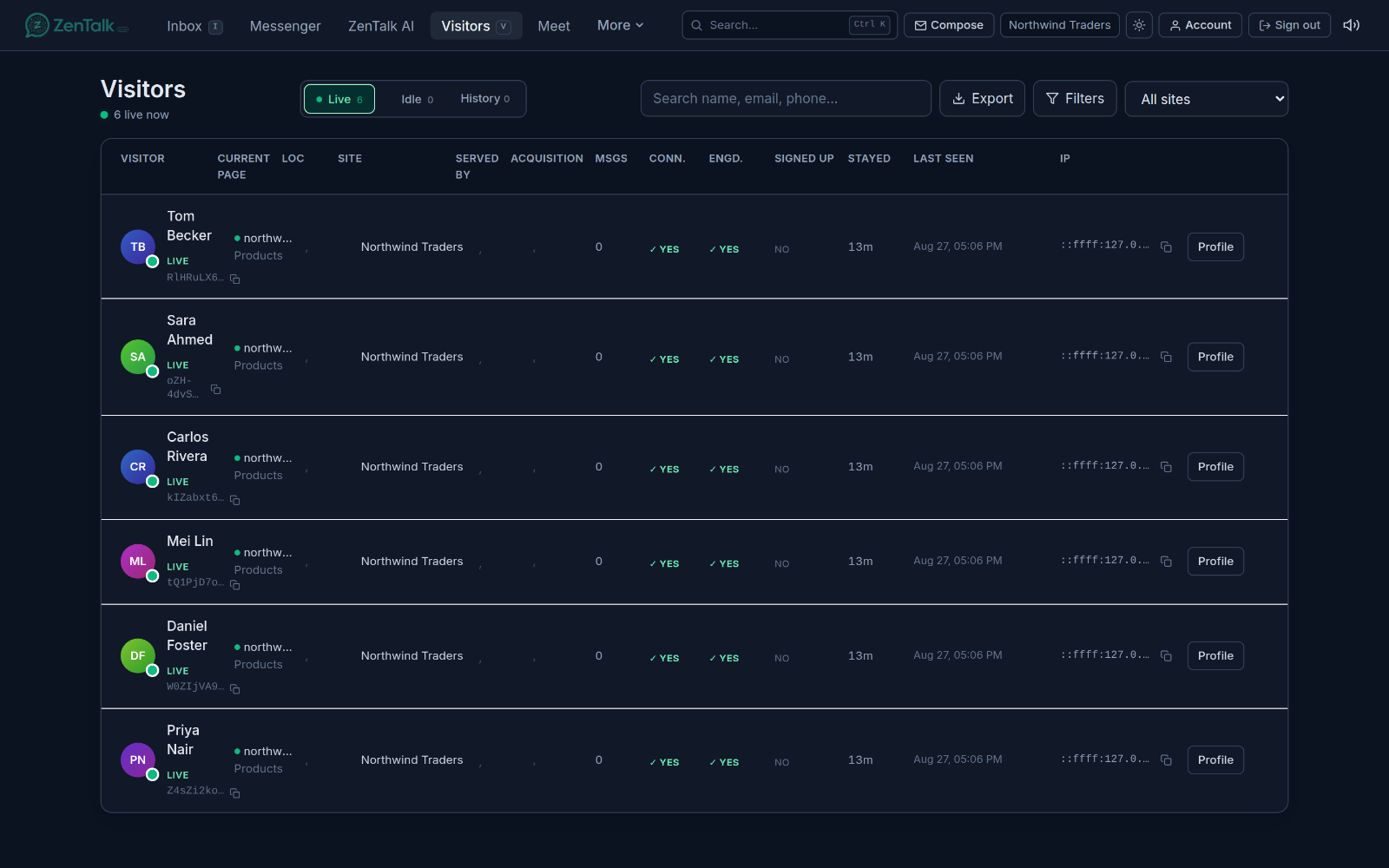
What the Visitors tab is for
Visitors is a live roster of the people your widget can see. Each row is one visitor: where they are on your site, where they came from, whether they have talked to you, and how to reach them. A small "N live now" counter under the page title, with a pulsing green dot, tells you how many people are on your site at this moment.
Open it from the main navigation. The list loads roughly 100 rows at a time and keeps itself up to date in real time as people arrive, move between pages, and leave.
Live, Idle, and History
Three tabs at the top of the page split visitors by their presence state. A visitor slides between these tabs on its own the moment their connection changes, so you never have to refresh.
- Live (green): the visitor is connected and your site is the tab they are looking at right now. These are the people worth reaching first.
- Idle (amber): the visitor is still connected but has switched to another tab or window. They are around, just not looking.
- History: the visitor has disconnected. This is your past traffic, everyone who has visited but is not online now.
Each tab shows a running count. On a visitor's row, a green pulsing dot on the avatar means Live, a steady amber dot means Idle, and no dot means they are offline. A "Live" or "Idle" label, or a "New visitor" tag for a brand-new arrival with no messages yet, can also appear next to the name.
What each row shows
Rows are laid out in columns. You can turn any of these on or off (see Filters and columns below). By default you see:
- Visitor: the name if you have one, otherwise a short "Visitor #N" reference, plus a copyable anonymous ID and unread badges.
- Current page: the page the visitor is on right now, with a live or idle dot beside it, and the page title underneath.
- Location: a country flag and the two-letter country code. Hover for the full country name.
- Site: which of your sites they are on. In a cross-workspace view, a short colored tag shows the workspace.
- Served by: the agents handling this visitor's chat, or an "AI" tag when the sales bot has been answering, or a dash when nobody has picked it up.
- Acquisition: campaign signal, shown as up to three stacked tags. "kw" is the targeted ad keyword, "q" is the actual search term the visitor typed, and "via" is the ad network (Google, Microsoft, Facebook, and so on) inferred from the click.
- Msgs: total messages, counted only once there has been a two-way exchange. One-sided chats show 0.
- Connected: Yes if the visitor has sent at least one message of their own.
- Engaged: Yes if the chat has any message at all, from the visitor, an agent, the bot, or a greeting. No (amber) means the chat is completely empty.
- Signed up: Yes when the site has identified this visitor as a logged-in user, No when they are anonymous.
- Stayed: how long they have spent on your site, summed across visits.
- Last seen: the exact date and time you last saw them. Hover for the relative form, like "5m ago".
- IP: the visitor's IP address, with a one-click copy button, useful for blocking or reconciling ad spend.
Reachability of email and phone
When you open a visitor's profile (the Profile button on the right of the row), the Contact section shows a small reachability tag next to the email and phone once they are on file. The email tag reflects deliverability and the phone tag reflects whether the number can actually ring, so you can tell a good contact from a dead one before you spend time reaching out.
Filters and columns
The Filters button opens a panel titled "Filters & columns" where you can narrow the list and choose which columns to show. Active filters appear as removable chips above the table, and the button shows an "on" badge while any are set. Your filter and column choices are remembered per workspace.
Filters combine with the presence tab you are viewing, so you can filter Live traffic only, or dig through History. Available filters include:
- Country (multi-select), City contains, and IP contains for location and network.
- Acquisition (has a campaign or not) and Via network to filter by the ad network they arrived through.
- Email on file, Phone on file, and Signed up for contact and identity.
- Connected, Bot-served, and Engaged for conversation state.
- Messages and Visit count as min and max ranges.
At the bottom of the panel, "Columns to show" lets you toggle each column, with "Reset columns" and "Reset filters" links to start over. The Search box filters by name, email, or phone, the site dropdown scopes to one site, and Export downloads the currently visible rows as a CSV.
Starting a chat with a visitor
You do not have to wait for a visitor to message you first. To reach out:
- Find the visitor in the list, using the tabs, search, or filters.
- Click anywhere on their row. ZenTalk opens (or reuses) a conversation with that visitor and pops it out as a floating chat window.
- Type your message. The floating window stays open as you keep working, so you can ping several visitors from the same page without losing the list.
Clicking a row also clears its unread and "New chat" markers. For the full composer and side panel, open the conversation in the Inbox instead.
How this differs from the Inbox
The Visitors tab is presence-first: it lists people, whether or not they have ever said a word, so you can see who is on your site and proactively start a chat. The Inbox is conversation-first: it lists the chats that need a reply and is where you do your day-to-day support work with the full composer, assignment, and history.
Use Visitors to watch live traffic and open new conversations. Use the Inbox to work through the ones already in flight.
Related
Next, see the Inbox to reply to and manage conversations, the Leads page to work the people who left contact details, and Customers for the full shared record of everyone you have talked to.