
Browse all docs
Deliver the work
The Mail tab is a full email helpdesk built into ZenTalk. Connect your own mailbox over IMAP and SMTP, then read, reply, and send from your own domain without leaving the dashboard.
What the Mail tab is for
Mail turns your existing business inbox into a shared support surface inside ZenTalk. You connect a real mailbox (your cPanel mail, Google Workspace, Outlook, and so on) and ZenTalk syncs it in over IMAP and sends out over SMTP. Nothing is rerouted through a third party: the messages live on your own mailserver, and your actual mailbox stays untouched. Because Mail runs next to the rest of the dashboard, senders who are already known customers show up by name instead of a bare email address.
Open it from the main navigation by clicking Mail. If you have not connected a mailbox yet, ZenTalk takes you straight to the connect form.
The layout: rail, list, reading pane
Mail uses a three-column layout that stays inside the viewport so long mailboxes scroll their own column instead of stretching the page.
- Left rail: every mailbox you have connected, each showing its full folder tree at once (Mac Mail style). At the top are the+ Compose button and a Sync all button.+ Add another mailbox sits at the bottom.
- Middle column: the message list for the folder you pick, with a search box across the top.
- Right column: the reading pane for the message you open. Until you pick one it reads "Select a message to read."
Each mailbox header shows its email address, a display name, aDefault badge on the default sending account, and a count of unread messages across that mailbox. Standard folders carry familiar icons: Inbox, Sent, Drafts, Trash, Spam, and All. Every folder shows its own unread count, and unread counts update in real time as new mail arrives. When you first land, ZenTalk auto-selects the first inbox it finds.
Reading and threading
The message list rolls related replies into a single thread row keyed by the reply and reference headers plus a normalized subject, which cuts down the number of rows you scroll through. A thread row shows the participants, the subject, a snippet of the latest message, a count badge when there is more than one message, a paperclip when the thread carries attachments, and the date. Unread threads render in bold. Clicking a thread opens its newest message.
In the reading pane you get the subject, a sender block with an avatar, the sender name and address, relative and absolute timestamps, and the To and Cc lines. HTML emails render in a sandboxed frame with clean typography, and links open in a new tab. Opening a message marks it read automatically.
Searching your mail
The search box at the top of the message list searches across folders. Type at least two characters and results appear after a short pause. When a mailbox is open, search is scoped to that mailbox; otherwise it covers your whole set of mailboxes. Results are grouped into threads just like the folder view. Clear the box, or pick a folder in the rail, to return to normal folder browsing.
Composing, replying, and forwarding
Click + Compose to write a new message, or use the action buttons at the top of an open message.
- Reply writes back to the sender.
- Reply all appears when the message had more than one recipient and pulls the other recipients into Cc.
- Forward starts a fresh recipient list and keeps the quoted original.
Replies and forwards prefill the subject (with Re: or Fwd:) and quote the original message. In the compose window you can:
- Pick the From mailbox when you have more than one connected.
- Add recipients in the To and Cc fields. Type a name to search your customers and pick one from the dropdown, or type a full email address and press Enter, comma, or Tab to add it. For a known customer, ZenTalk holds the actual email address server-side, so the chip shows the name only.
- Write a subject and a message body.
- Attach files if needed.
- Click Send.
Above the message body you can apply a saved template, save the current body as a new template, or manage your templates. Templates are per agent, so each teammate keeps their own set of reusable bodies. When you apply a template over an existing draft, ZenTalk asks whether to replace or append.
Attachments
In the compose window, use the file picker to attach files. You can add up to 10 files, 25 MB total, and remove any file before you send. Each attached file shows its name and size.
On an incoming message, attachments appear as cards above the body, each with a file-type badge, the file name, and the size. Click a card to download the file in a new tab. Thread rows show a paperclip and a count so you can spot attachments before you open a message.
Customers in your mail
Mail is wired into the same shared customer record as the rest of ZenTalk. When an incoming message comes from someone who is already a known customer, the From line shows their name and the sites they belong to instead of a raw address. When you compose, the recipient search lets you pick a customer by name, and ZenTalk resolves their email address behind the scenes so it is never exposed in the compose window. You can mix customer picks and typed addresses in the same field.
Keeping mail up to date
ZenTalk syncs your mailboxes in the background. To pull new mail on demand, use Sync all in the rail to refresh every connected mailbox at once, or open a single mailbox's menu (the dots next to its header) and choose Sync this mailbox. The same menu lets youEdit mailbox and Make default. If a mailbox hits a sync problem, its error shows under that mailbox in the rail.
Connecting and managing mailboxes
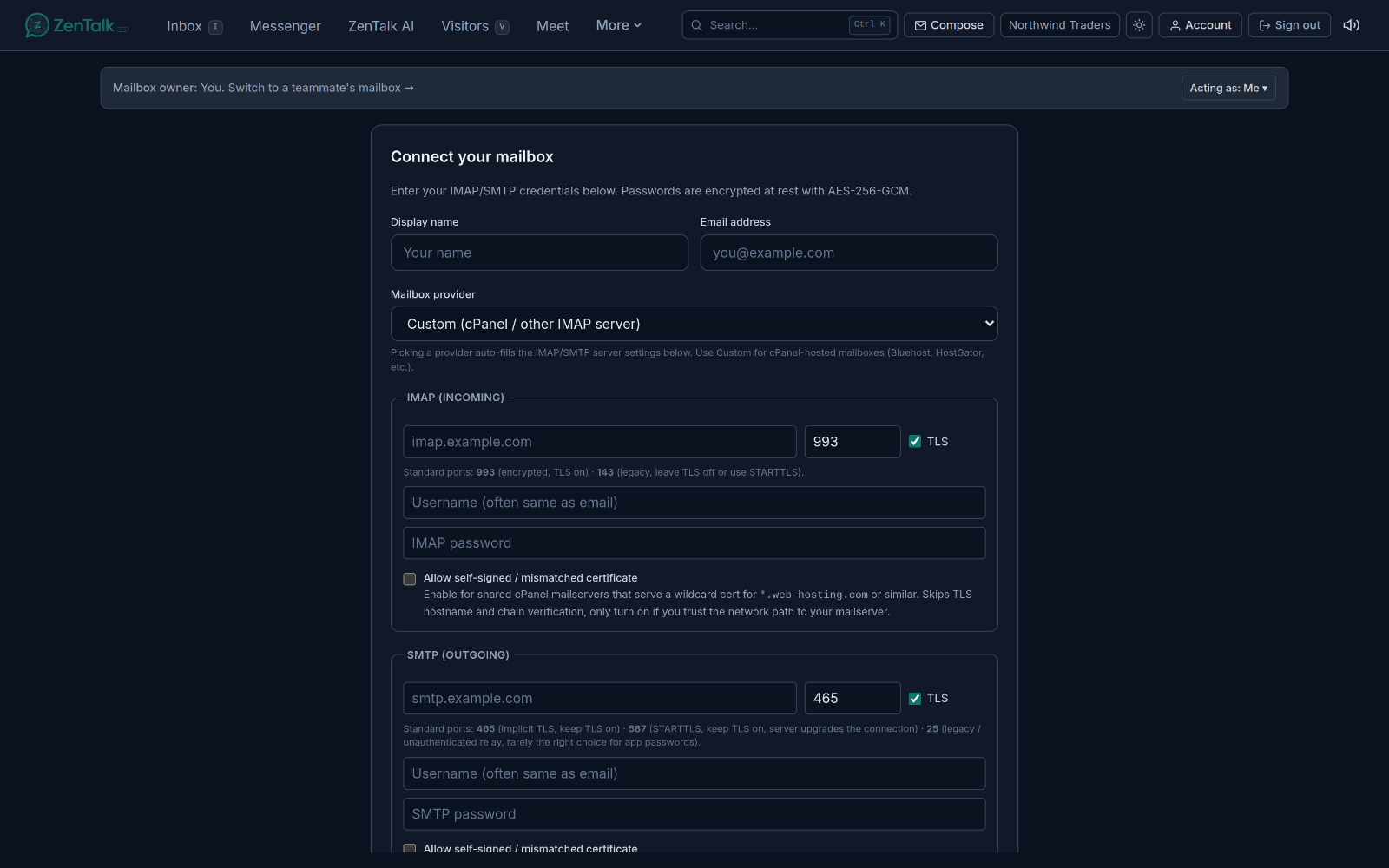
Use + Add another mailbox (or the connect form that opens automatically when you have none) to connect a mailbox. Fill in:
- Display name and Email address.
- A Mailbox provider. Picking a known provider auto-fills the IMAP and SMTP server settings; use Custom for cPanel-hosted mailboxes such as Bluehost or HostGator.
- IMAP (incoming) host, port, and password. Port 993 with TLS on is the encrypted standard; 143 is the legacy port.
- SMTP (outgoing) host, port, and password. Port 465 uses implicit TLS, 587 uses STARTTLS, and 25 is a legacy relay port.
For shared cPanel mailservers that present a wildcard certificate, there is an option to allow a self-signed or mismatched certificate on IMAP and SMTP. Passwords are encrypted at rest with AES-256-GCM. ClickConnect mailbox to save; a fresh mailbox runs an initial sync so its folders and inbox populate right away.
If you have already connected the same mailbox in another workspace, the connect form offers a Quick import so you can reuse those IMAP and SMTP settings in one click instead of retyping them. To edit a mailbox later, open its menu and choose Edit mailbox; you can leave the password fields blank to keep the current password.Disconnect mailbox removes the synced copy from ZenTalk while leaving your real mailbox untouched.
Related
Mail sits alongside the rest of your support tools. See Tickets for tracking and resolving customer issues, the Inbox for live chat conversations, and Settings for workspace-level configuration.