
Browse all docs
Conversations
Messenger
Messenger is your internal team chat inside ZenTalk, where you talk with your own coworkers in channels and direct messages, kept completely separate from the customer conversations in your inbox.
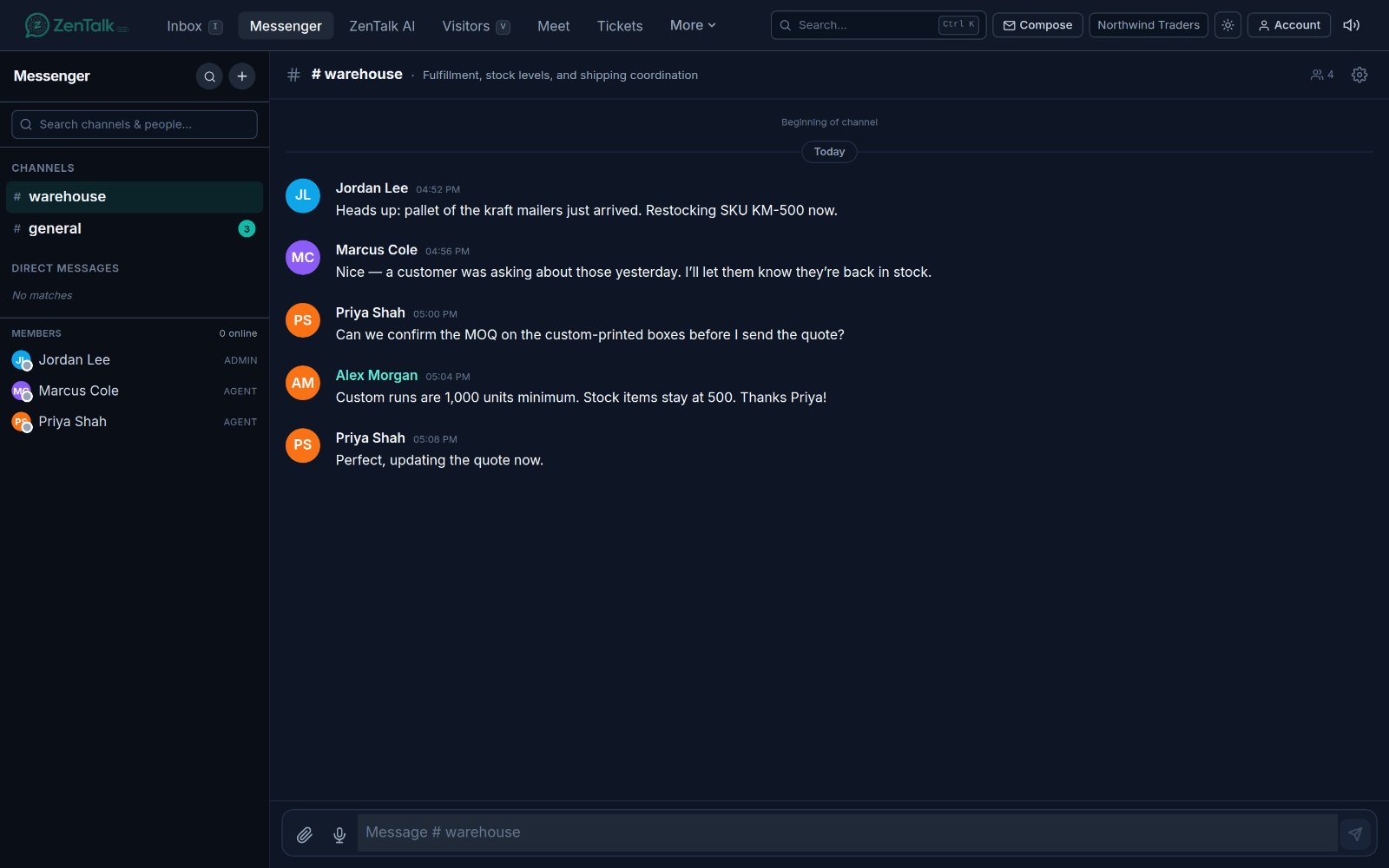
What the Messenger tab is for
Messenger is for talking to the people you work with, not to visitors or customers. It is a private space for your team: shared channels for topics and teams, and one to one or group direct messages for quick back and forth. Customer chat lives in the Inbox and is a different surface entirely. Nothing you type in Messenger is shown to a website visitor.
The layout has two parts. On the left is the sidebar with your channels, your direct messages, and a list of people you can message. On the right is the open conversation, with the message history and a box at the bottom to type. On a phone you see the sidebar first, tap a conversation to open it, and use the back arrow to return to the list.
Channels versus direct messages
The sidebar groups your conversations into two kinds.
- Channels are shared rooms for a topic or a team, such as one for a project or a department. Public channels can be found and joined by anyone in the workspace. Private channels are only visible to the people who have been added to them.
- Direct messages are private conversations with one specific teammate, or with a small group you pick. They do not appear to anyone you did not include.
Each row shows an unread badge when there are new messages you have not read. The list of direct messages is sorted so the most recent activity floats to the top. Type in the filter box at the top of the sidebar to narrow the list by name; it also searches the people directory by name, email, or home workspace.
Starting a direct message
There are two ways to start a direct message.
- The fastest way: scroll to the Members list at the bottom of the sidebar and click a teammate. If you already have a direct message with that person, it opens; if not, ZenTalk creates it on the spot.
- Or open the New DM action (from the plus button in the sidebar header, or the New DM link on the Direct messages group). Search for teammates, then click to select them. Pick one person for a one to one message, or two or more for a group message. ClickOpen DM or Open group DM to start.
Group direct messages cap at 50 people total. A group with only one other person collapses back into a regular one to one message so you do not end up with duplicate threads.
Creating and joining a channel
Create a channel
- Click the plus button in the sidebar header and choose to create a channel.
- Pick Public or Private. Public means anyone in the workspace can find and join it. Private means only the people you add can see it.
- Give the channel a name (for example, engineering) and, if you want, a short topic that describes what it is for.
- Click Create. The new channel opens right away.
Join a channel
Use Browse all (on the Channels group) or the browse action in the sidebar header to open the list of public channels in your workspace. Search by name, topic, or description, then clickJoin on any channel you want to be part of. Channels you have already joined show as Joined. Private channels do not appear here; you can only get into a private channel by being added to it.
Messaging across workspaces in your organization
If your workspaces are grouped under an organization, Messenger can reach people beyond your own workspace. This depends on how your organization is set to share: when cross workspace messaging is turned on, the people directory in your sidebar includes colleagues from the other workspaces in the organization, not just your own.
When that is the case, the Members area shows a second group named after your organization, listing the extra people across your other workspaces, with each person labeled by the workspace they belong to. Click any of them to open a direct message, exactly like you would with someone in your own workspace. The message is created across the workspace boundary so you can talk to anyone in the organization directly.
If cross workspace messaging is not enabled, the directory only shows your own workspace and this organization group does not appear. Whether it is on is controlled at the organization level.
Mentions
To get a specific person's attention, type an at sign followed by their name. As you type, a small picker appears with matching people in the channel; use the arrow keys and Enter or Tab to insert a name, or keep typing to narrow it. When you send a message that mentions someone, they get notified, including a sound, even if they are looking at a different channel at the time.
To send, press Enter. To add a new line inside a message without sending, press Shift and Enter together.
Using Messenger on a phone
On a small screen Messenger works as one column at a time. You see the channel and people list first; tap a conversation to open it, and tap the back arrow in the conversation header to return to the list. The message box stays pinned above the on screen keyboard, so what you are typing does not get hidden when the keyboard opens.
New messages that land in a channel you are not currently looking at play a sound and bump that channel up your list with an unread badge, so you notice replies while you are working elsewhere in the app.
To manage the people who show up here, see Team. To control cross workspace messaging and how your workspaces are grouped, see Organization. For talking to customers rather than coworkers, see the Inbox.