
Browse all docs
Customers and sales
Customers
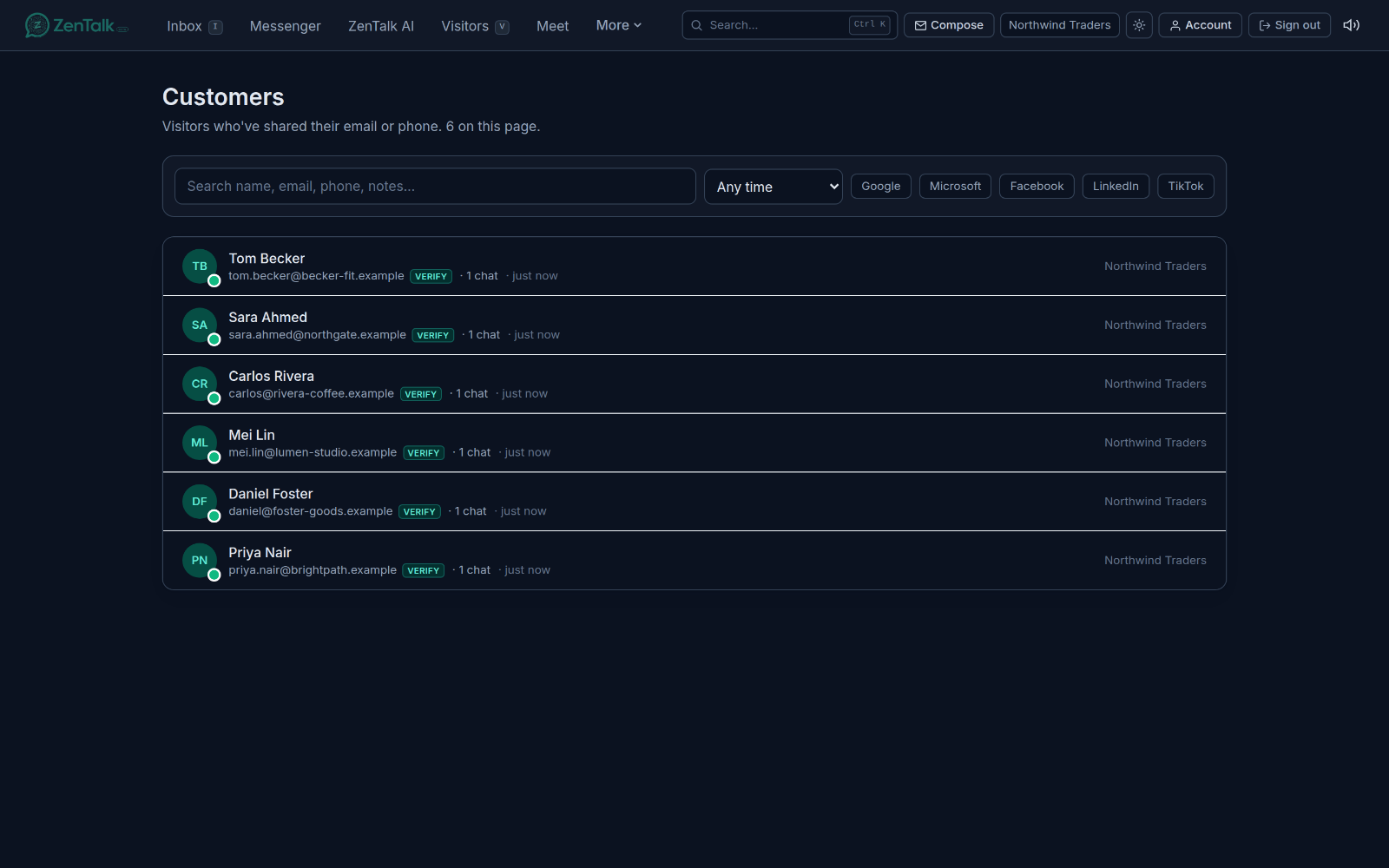
The Customers tab is your CRM list of the known people who have shared a way to reach them, so you can look them up, review their history, and pick the conversation back up.
What makes someone a customer
A visitor becomes a customer the moment they share their email or phone. That can happen when they type it in the chat, fill out an inline lead form, get it captured automatically, or when an agent adds it by hand. Once any contact detail lands, the person shows up here. Anonymous traffic that has not shared contact details stays on the Visitors tab instead.
Customers are keyed by email within a workspace, so if the same email has activity across more than one of your sites, all of those threads are gathered under the one customer.
The customer list and its columns
Each row is one customer. Click a row to open the full profile. A row shows you, at a glance:
- An avatar with initials, and a small green dot when the person is online right now.
- The name (or the email if there is no name), plus a country code tag when known.
- The email and the phone, each with a reachability pill next to it.
- How many chats and, if any, how many tickets the customer has.
- When they were last seen, shown as "just now", minutes, hours, or a date.
- Any tags on the customer, which you can click to filter the list by that tag.
- On wider screens, the site they came in on, their city, and their ad provider if they arrived from a paid network.
The list loads in pages. When there are more customers than the current page, a Load more button appears at the bottom to pull in the next batch.
Search and filters
A filter bar sits above the list. Use it to narrow down to the people you want:
- Search: type into the search box to match by name, email, phone, or notes. The search runs against your whole customer list, not just the loaded page.
- Site: when you have more than one site, a picker lets you limit to a single site or show all sites. Your choice is remembered between visits.
- Last seen: filter by when the customer was last active. Presets cover the last 24 hours, 7 days, or 30 days, and "Custom range" reveals two date pickers for an exact window.
- Ad provider: toggle the network chips to show only customers who arrived from a given paid source.
- Tag: clicking a tag on a row adds a tag filter. A small chip shows the active tag, and you clear it with the X on the chip.
The list also refreshes on its own as new contact details come in, so a person who just shared an email surfaces without you reloading the page.
Opening a customer profile
Click any row to open that customer's profile page. From there you can:
- Edit the name, email, and phone inline by clicking the field and saving.
- Read the AI handoff summary, and use its refresh control to re-run the summary across their conversations.
- Add and remove tags, and write internal notes that the next agent will see but the customer never does.
- Review the full visitor profile, the same panel used on the Visitors tab, covering acquisition, journey, visit history, and browser and device details.
- See every conversation tied to this customer, including threads from more than one site, and switch between them.
Contact and reachability
Next to the email and phone, both on the list rows and in the profile, is a reachability pill. It tells you whether the address or number looks deliverable, so you know before you reach out whether a message or call is likely to land. If contact details look wrong, an agent can correct them inline, and a super-admin can bypass the edit lock to fix poisoned data.
Starting a conversation with a customer
To pick the chat back up with a known customer:
- Open the customer's profile from the list.
- Click Continue chat in the header. The button reads "Opening" while it works.
- You are taken into the Inbox with that conversation open, ready to type.
From the profile header you can also start a project pre-filled for this customer with Create project, if your workspace has the Projects module.
How customers relate to leads and visitors
These three tabs are three views of the same people at different stages. Everyone starts as anonymous traffic on Visitors. The moment someone shares an email or phone, they become a customer here, and qualified prospects also show up on Leads. It is one shared record, so a name, tag, or note added in any of these places follows the person everywhere.
Deleting a customer
A super-admin sees a Delete control on each row. Deleting a customer hard-deletes every visitor row that shares their email in the workspace, including conversations, messages, leads, and tickets, and it cannot be undone. A confirmation prompt spells this out before anything is removed, and if siblings across multiple sites were swept, the count is shown afterward.
Related: capture and qualify people on Leads, watch anonymous traffic in real time on Visitors, and handle live conversations in the Inbox.