
Browse all docs
Customers and sales
Leads
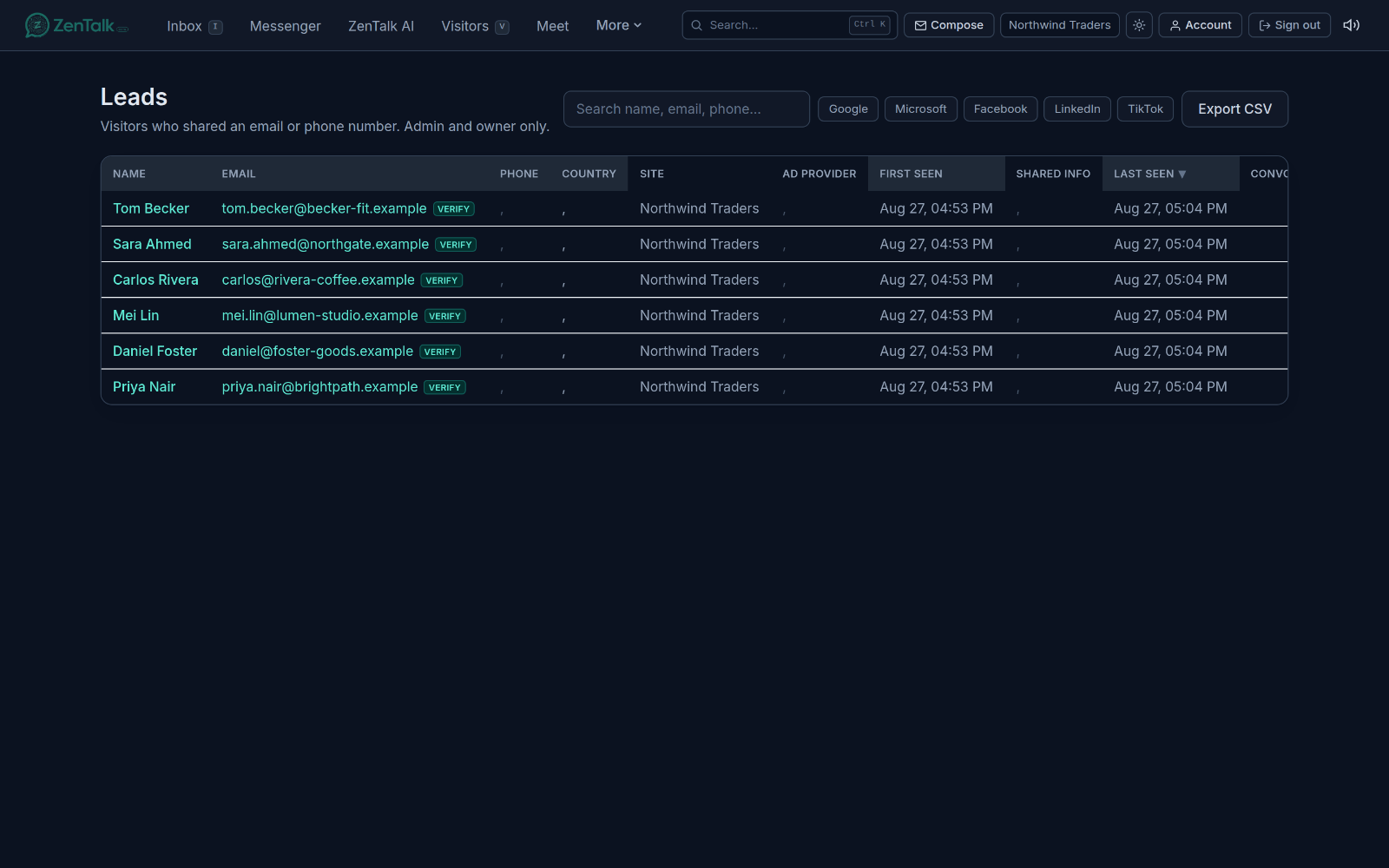
The Leads tab is the list of every visitor who shared a real email address or phone number with you, collapsed into one clean row per person so you can work the pipeline without hunting through the inbox.
What the Leads tab is for
A lead is a visitor who has given you a way to reach them. As soon as someone hands over an email or a phone number, they show up here. The page reads like a spreadsheet: name, contact details, where they came from, and how many conversations they have had, all in one place. It is the fastest way to see who is worth a follow-up and to pull that list out for your sales team.
Open it from the Leads link in the top navigation. It lives alongside Visitors and Customers in the customer area of the dashboard.
Who can open it
Leads is restricted to workspace owners and admins (and the marketeer role for ad-attribution work). Regular agents are sent back to the dashboard if they try to open it, because the page exposes personal contact information for every visitor.
How leads get captured
You do not add leads by hand. They arrive automatically from the widget and the chat:
- AI chat capture. When the sales and support bot (or an agent) collects an email or phone during a conversation, that visitor becomes a lead.
- Inline lead form. When a visitor fills in the contact form inside the widget, the moment they share their details is recorded as the "Shared info" time on their row.
- Other identify paths. Contact details can also arrive through a prechat form, a signed identity token, or an agent editing the visitor's info in the visitor pane. These still create a lead, but they do not stamp a "Shared info" time because they do not go through the inline form.
The list updates live. When new contact details land while you are looking at the page, the top of the list refreshes on its own so the new lead appears without a manual reload.
The columns
On a wide screen the leads render as a sortable table. On a phone each lead becomes a stacked card. The columns are:
- Name. The visitor's name, or "Anonymous" if you do not have one. Click it to open the full visitor record.
- Email. A clickable mail link, with a reachability tag next to it (see below).
- Phone. A clickable dial link, with its own reachability tag.
- Country. The visitor's country, and city when known.
- Site. Which of your sites captured them.
- Ad provider. The ad network the visit was attributed to, when one applies.
- First seen. When you first saw this person.
- Shared info. When they submitted their details through the inline lead form.
- Last seen. Their most recent visit.
- Convos. How many conversations they have had with you.
Click any sortable header (Name, Email, Phone, Country, First seen, or Last seen) to sort by it. Click the same header again to flip between ascending and descending. Date columns start newest-first; text columns start A to Z.
Contact reachability tags
Next to each email and phone is a small colored pill telling you whether that address or number is actually usable:
- Reachable / Deliverable (green): a live check confirmed the number can receive calls and texts, or the mailbox accepts mail.
- Undeliverable / Bounces (red): the number likely fails or goes straight to voicemail, or mail would bounce.
- Switched off, Catch-all, Do not mail (amber): a soft warning, for example a handset that is off, a domain that accepts all mail, or a role or disposable address.
- Unverified (gray): no check has run yet.
When an Unverified pill can be checked, it appears as a Verify button instead. Click it to run a live reachability check on that one contact. This is fair-usage limited to one check per hour and five per day per agent, so use it on the leads that matter.
Suspicious sign-ups
A row marked Suspicious belongs to a run of sign-ups that looks fabricated rather than from real, distinct people, such as one device producing many sign-ups while its IP address keeps changing. Hover the badge to see the risk score out of 100, and click it to open the Suspicious sign-ups page for review. Nothing is blocked. To get an email when this happens, turn on suspicious sign-up alerts on the site's Alerts page.
One row per person (dedup by email)
The same human often generates several visitor records: a cleared cookie, a second device or browser, or the same email captured on two of your sites. Left alone that would show the same address two or three times. The Leads page collapses those into a single row, keyed on the email address (falling back to phone, then to the individual record when there is no contact detail).
This is a read-time tidy-up only. Nothing is merged or deleted in your data, and the collapse is scoped per workspace, so if you view several brands at once the same address stays separate under each brand.
Search and filters
- Search. Use the search box to filter by name, email, or phone. It waits a moment after you stop typing so it does not fire on every keystroke.
- Ad provider. Click the ad-network chips to narrow the list to leads attributed to those networks. Click a chip again to turn it off. This filter covers the whole list, not just what is on screen.
If you can see leads from more than one site or workspace, a Tenant filters panel appears too. Pick one or more Sites to narrow the list. When your access spans several workspaces or organizations, you can also filter by Organization, then switch between filtering by Workspace or by Site. Filters combine, and Clear all resets them. When there is only one thing to filter, the panel stays hidden.
Long lists load in pages. When there are more leads than the first page, a Load more button appears at the bottom to pull in the next batch.
Exporting to CSV
Click Export CSV to download the list as a spreadsheet. The export respects your current search and sort, so you can filter the list first and export exactly that set. The file downloads straight through your browser using your existing login.
Turning a lead into a conversation or customer
- Click the lead's name to open their full visitor record.
- From there you can see their history, edit their contact details, and pick up or start a conversation with them.
- Once they buy or are marked as a paying contact, they move into your customer list, where recurring relationships live.
You can also click an email to compose a message or a phone number to dial directly from the row.
Related: see Customers for turning leads into paying relationships, Visitors for the full record behind each row, and Appointments for booking a follow-up.