
Browse all docs
Conversations
Saved Replies
Saved replies are prewritten messages your team can drop into a chat in a couple of keystrokes, so you answer common questions fast and consistently.
What saved replies are for
A saved reply pairs a short shortcut (like thanks) with a longer body of text. When you are typing to a visitor in the inbox, you pull the reply up by its shortcut and insert the full body instead of writing it out every time. Each reply is private to you unless you turn on Share with team, so you can keep your own personal shortcuts and still draw from a shared team library.
This page is the catalog manager. It lives at /canned-responses(shown as Replies in the app), and it is where you create, edit, and delete the replies your team uses in chat.
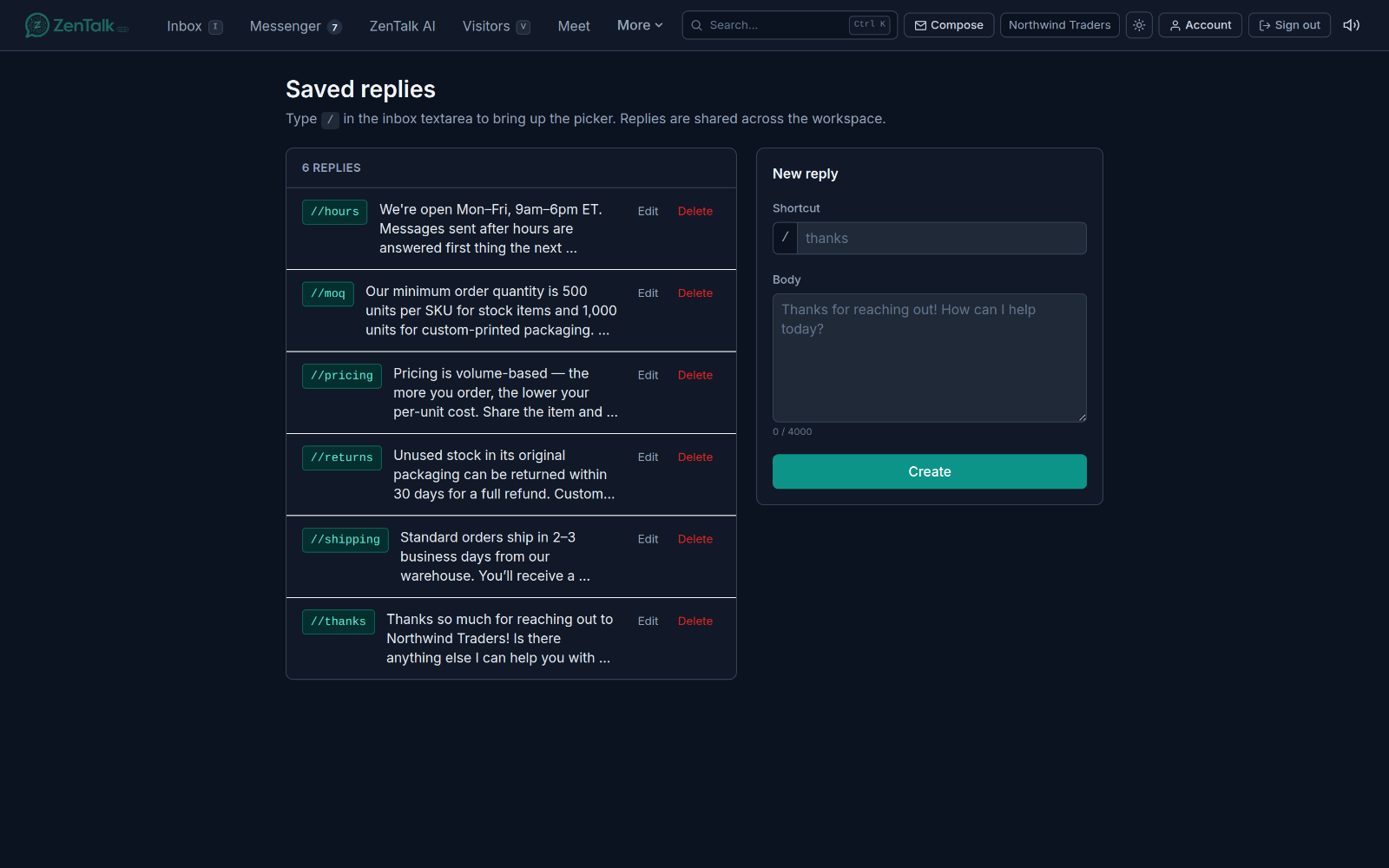
The Saved replies page
Three stat tiles at the top show your Total replies, how many are Shared with team, and how many are Private. Below the tiles are scope tabs: All, Shared, and Private, so you can quickly filter the list to just one category.
The rest of the page has two parts side by side:
- The list on the left shows your private replies plus every reply shared with the team. Each row shows the shortcut (with a leading slash, for example
/thanks), a tag that reads Shared with team or Private, a preview of the body, and Edit and Delete buttons. Shared replies are listed first, then everything is sorted by shortcut. - The form on the right is where you add a new reply or edit an existing one. It has a Shortcut field, a Body field, and a Share with team toggle.
Before you save anything, the list shows an empty state that reads "Nothing saved yet. Add your first reply on the right."
Creating a saved reply
- In the New reply form on the right, type aShortcut. This is the keyword you will type to find the reply later. The slash is added for you, so just enter the word (for example
thanks). Shortcuts can be up to 40 characters. - Type the message text in the Body field. This is what gets inserted into the chat. The body can be up to 4000 characters, and a live counter shows how many you have used.
- Decide who can use it. Leave Share with team off to keep the reply private to you, or tick it so every agent in the workspace can use and edit it.
- Click Create. Shortcut and Body are both required, so if either is empty you will be asked to fill it in. The new reply appears in the list with its Private or Shared with team tag.
Editing and deleting
To change a reply, click Edit on its row. The form on the right switches to Edit reply and loads the current shortcut, body, and sharing setting. Make your changes and click Save changes, or click Cancel to leave it untouched. You can share a private reply with the team later, or take a shared one back to private, by changing the checkbox while editing.
To remove a reply, click Delete on its row. You are asked to confirm first (the prompt names the shortcut you are about to delete), and the reply is removed once you confirm.
Using replies in the inbox
Saved replies show up right in the message composer while you are chatting with a visitor. To use one:
- Type
/at the start of the message box. ASaved replies picker opens above the composer. - Keep typing to filter. As you add letters after the slash, the picker narrows to replies whose shortcut starts with what you typed. It shows up to six matches at a time.
- Choose one. Click a match, or use the Up and Down arrow keys to move through the list and press Enter (or Tab) to insert it. Press Escape to close the picker without picking anything.
Inserting a reply replaces your draft with its body, so you can edit the text before sending. If you have no replies yet, the picker says so; if nothing matches what you typed, it tells you there are no matches. The picker also has a Manage saved replies link that opens this page in a new tab.
Sharing and visibility
Every reply has one of two settings:
- Private: the default. Only you see the reply on this page and in your slash picker. Teammates never see it.
- Shared with team: every agent in the workspace sees the reply, can insert it, and can edit or delete it. A change to a shared reply changes it for everyone.
In the inbox, the slash picker shows your own private replies together with all shared ones. Keep team-wide answers (opening hours, refund policy, standard greetings) shared, and think twice before editing or removing a shared reply your teammates may rely on.
Related: see the Inbox for the full chatting workflow where these replies are used, and Ratingsto see how visitors score the conversations you handle.