
Browse all docs
Conversations
The Inbox
The Inbox is where your team handles every live conversation: website chats, Facebook Messenger and WhatsApp messages, web and phone calls, and text messages. It is one screen for reading, replying, calling, and handing work between people and the AI.
How the Inbox is laid out
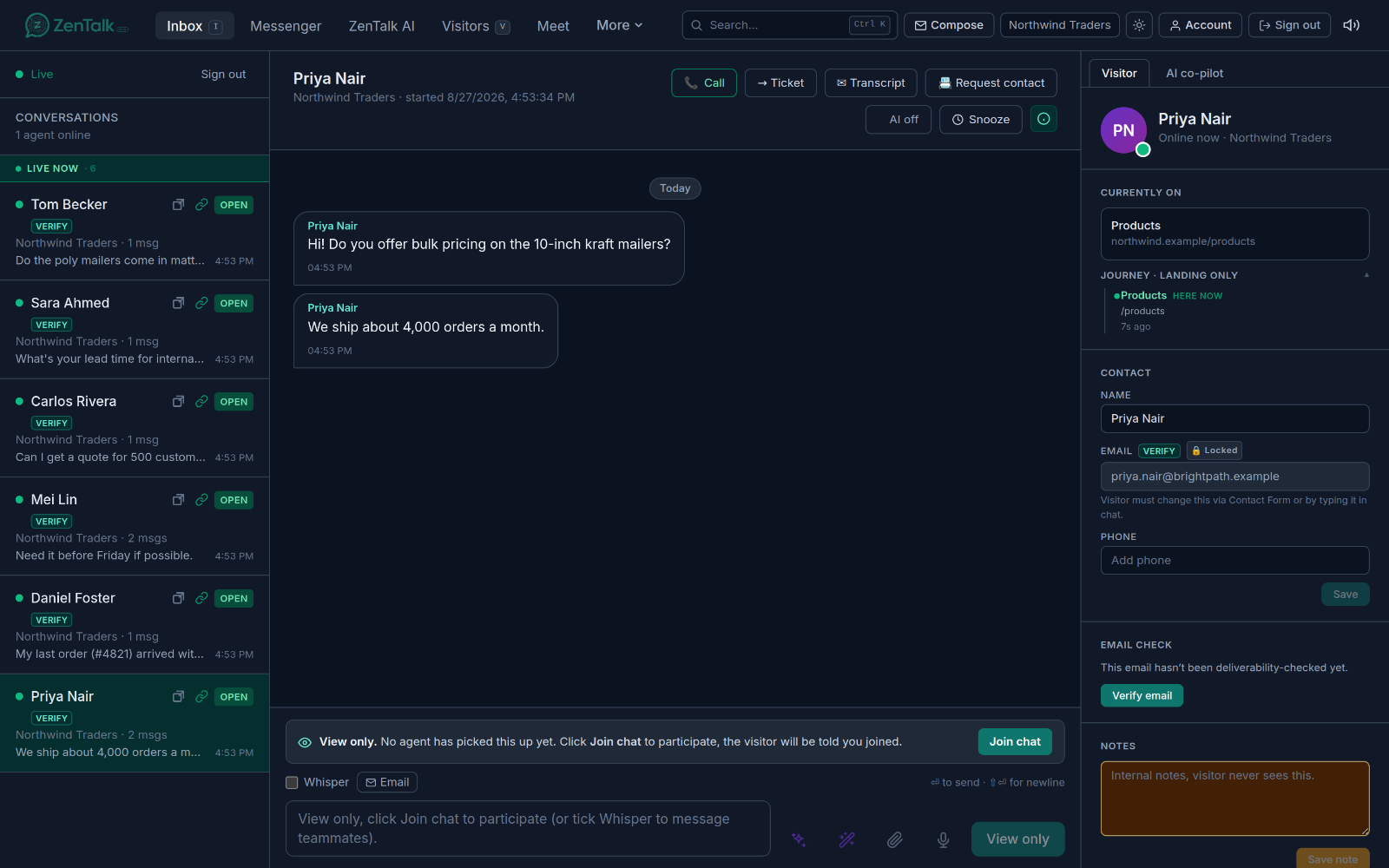
The Inbox has three columns. On the left is the conversation list. In the middle is the chat thread for the conversation you have open. On the right is a side panel with everything you need to know about the visitor.
- Conversation list: every open conversation, grouped into sections so the ones that need you sit at the top.
- Chat thread: the full message history, the reply box at the bottom, and the action buttons in the header.
- Side panel: a tabbed panel with a Visitor tab and an AI co-pilot tab. Show or hide it with the info button in the thread header.
If you work across several sites, use the site dropdown at the top of the list to focus on one site, or leave it on All sites to see everything.
The list sections
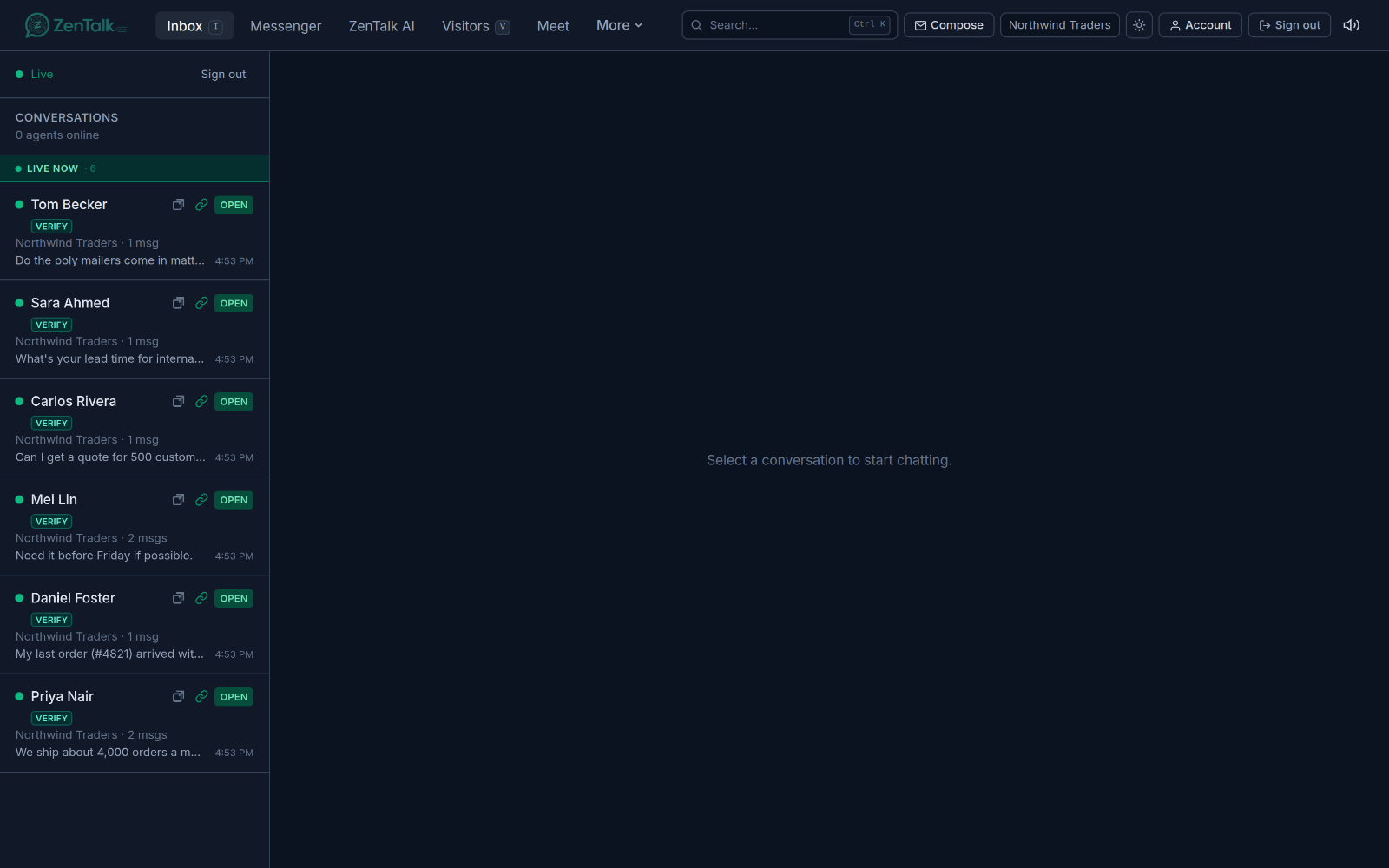
The conversation list sorts conversations into sections and labels each one so you can tell at a glance who is waiting and who is just around. Sections only appear when they have something in them, in this order:
- Messenger: chats from a connected Facebook Page. These are message threads, not live sessions, so you can reply any time.
- WhatsApp: chats from a connected WhatsApp Business number. You can reply any time, within Meta's 24-hour messaging window after the customer's last message.
- Calls & SMS: phone threads your team started from the Dialpad, plus any replies and calls that come back to them.
- New visitor: someone just arrived on your website and has not sent a message yet. A good moment to greet them first.
- Live now: the visitor is online and looking at the page right now. These are your most time-sensitive chats.
- Idle: the visitor is online but has the tab in the background, so they may be slower to reply.
- Snoozed: chats you parked for later. They surface again on their own when the timer runs out, or sooner if the visitor writes.
Messenger, WhatsApp, and phone threads stay in the list for 10 minutes after their last message or call. After that they drop out of the Inbox without being closed, and the next message brings them straight back to the top of their section.
Rows with unread messages are marked so you do not miss them, and the browser tab title shows a count when messages are waiting. When your workspace has contact checks turned on, rows also carry small reachability pills: Reachable, Undeliverable, or Switched off for a phone, and Deliverable, Bounces, Catch-all, or Do not mail for an email. A Verify pill means the contact has not been checked yet.
Picking up and replying to a conversation
Click any row in the list to open it. If nobody has picked the chat up yet, or another teammate is serving it, you open it in view-only mode and see a banner explaining who is on it.
- Click the conversation in the list to open the thread.
- If you see the View only banner, click Join chat. The visitor is told an agent has joined, and the reply box unlocks.
- Type your reply in the box at the bottom and send it. The first agent to send a message becomes the assignee for the chat.
The Serving by line in the header shows which teammates are on the conversation. To transfer or reassign a chat, another teammate simply opens it and clicks Join chat, so more than one person can serve the same visitor when needed. Click Leave chat under the reply box when you want to step out and leave it to the others.
If a website visitor goes offline, the reply box shows a notice that they are offline and that you can reply once they come back online. Messenger, WhatsApp, and phone threads have no live presence, so they are always open for a reply.
Actions in the thread header
The header of an open conversation holds the actions you use most. Which ones appear depends on the channel and on what the site and workspace have turned on.
- Ticket: turns the conversation into a tracked support ticket and opens it. See Tickets.
- Transcript: emails the full conversation as a transcript, with the visitor's email filled in when you have it.
- Request contact: drops a short contact form card into the visitor's chat so they can share their details. Website chats only.
- $ Payment link: creates a payment link inside the conversation, and you get the sales credit. It shows when payments are on for the workspace and the site. See Payments.
- Snooze: parks the chat until In 1 hour, In 3 hours, Tomorrow 9 AM, Next Monday, or a Custom time. Choose Unsnooze to bring it back early.
- Close: ends the conversation. You are asked to confirm with Yes, close conversation.
- View page: silently opens a live view of the page the visitor is on, with no prompt shown to them. It appears when your workspace has the Live Monitoring add-on and the visitor is online. See Billing.
Sending files, voice notes, emails, and saved replies
The reply box has a small toolbar for more than plain text. Which buttons appear depends on what each site has turned on.
- Saved replies: type / in the reply box to open your saved replies, then pick one with the arrow keys and Enter, or click it. See Saved replies to create and manage them.
- Attach a file: click the paperclip to send images and documents, up to five attachments per message.
- Voice note: click the microphone to record, then click again to stop and send. A timer shows while you record.
- AI help: the spark button suggests reply drafts, and the wand button opens Rephrase as to rewrite what you typed as Professional, Friendly, Empathetic, or Concise.
- Email: next to the Whisper checkbox, opens an email to this visitor with their address filled in. Replies thread back into the conversation.
Web calls inside the chat
When a site has voice calling turned on, a Call button appears in the header of website chats. Click it to ring the visitor right inside their chat widget, no phone number needed. An in-call panel floats on screen so you can keep working while you talk.
For a chat that came in through Facebook Messenger, you see Call in Messenger instead, which opens the thread in Meta's own inbox where the native call lives.
Phone calls and text messages
If an owner or admin has assigned you a calling number in Numbers & Wallet, you can call and text customers on their real phone number from the Inbox. Calls and texts are billed from your workspace's calling wallet. For the full guide, see Calling and texting customers.
Start a call from the Dialpad
- Click Dialpad at the top of the conversation list.
- Enter the number with its country code, for example +1 415 555 2671.
- For a number you have never been in touch with before, tick I confirm I have permission to contact this number.
- Click Call. ZenTalk opens a phone thread under Calls & SMS and places the call from your browser.
From a website chat, you can also click Call this number in the visitor panel when the visitor has shared a phone number. It opens a phone thread for that number, and the Call button in that thread's header dials it.
The call bar
A call bar floats on screen during phone calls. For an incoming call you see Accept and Decline with an Open conversation link. During a call you have Mute and Hang up. Missed incoming calls go to voicemail and show in the thread as Missed call · Voicemail.
Text messages
In a phone thread, the reply box becomes a text message composer. Type your message and click Send SMS. A pill above the box shows the price per text segment for that destination, and long texts or emoji use more than one segment. Customers who reply STOP are opted out automatically.
If texting is not possible for a contact, the composer explains why instead: the contact has no phone number on file, texting to that country is not supported, no calling number is assigned to you yet, or it is a US number and your workspace has not finished A2P 10DLC registration. For an unsupported country or a US number awaiting registration, you can still call from the Call button.
WhatsApp calls
When WhatsApp calls are turned on for a connected number, customers can call your business from WhatsApp. The call rings your team in a WhatsApp call panel in the dashboard, and if nobody picks up and the site allows it, the AI can answer instead. WhatsApp calls are inbound only. See Channels to turn them on.
Calls in the thread and recordings
Every call leaves a bubble in the conversation labelled Phone call, WhatsApp call, or Web call, with its outcome and length. On phone call bubbles, owners and admins also get Play recording and Download. Recordings are kept for compliance and delete themselves automatically after 1 month. All recorded calls are also listed on Call Recordings.
Floating chat windows
You do not have to stay on the Inbox to keep a chat going. Every conversation has a pop out button that lifts it into a floating window. The window stays pinned on screen while you move around the rest of the app, so you can check a lead, open a ticket, or update a sheet without losing your place in the conversation.
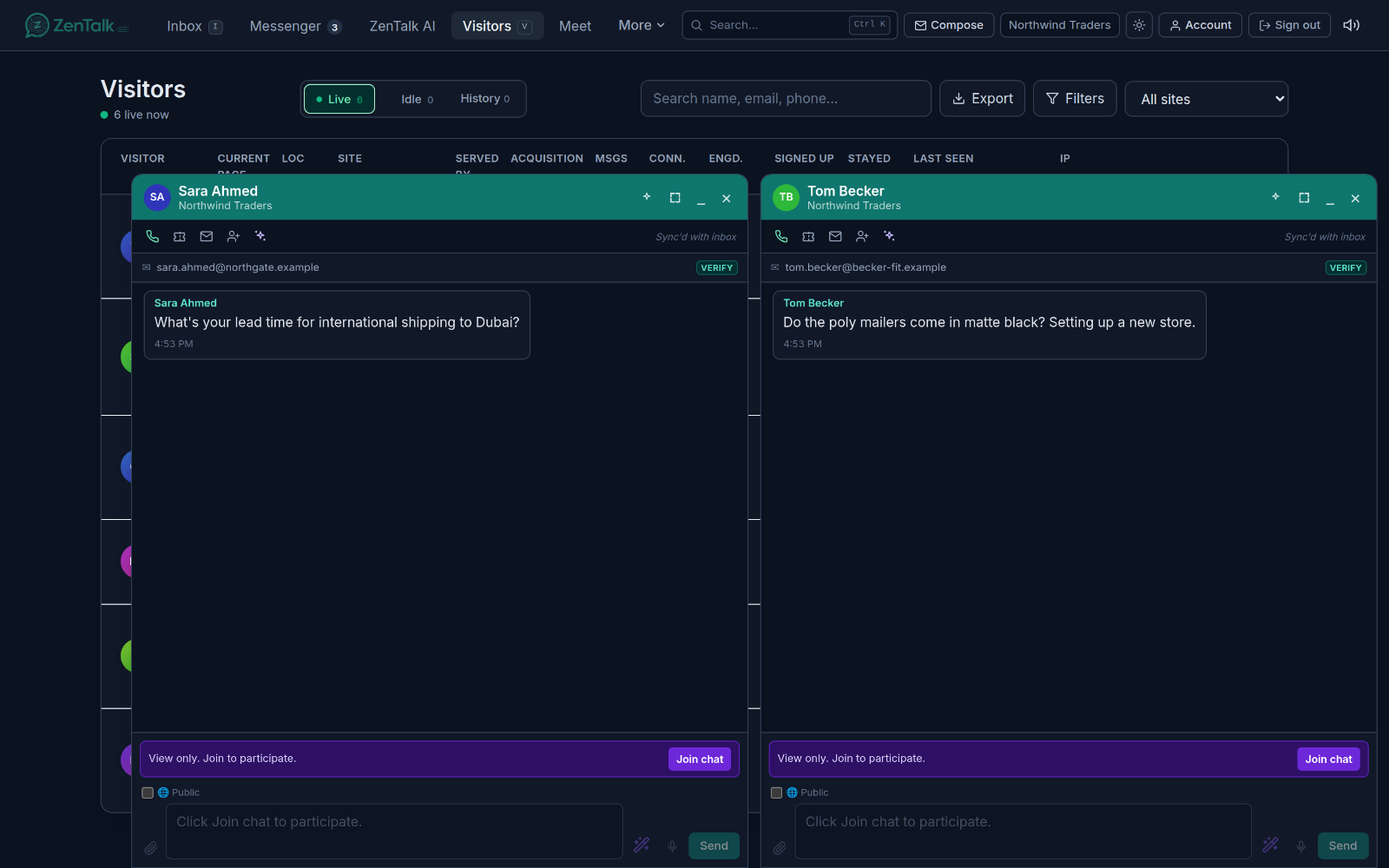
- Open several at once: pop out as many chats as you need. They tile along the bottom of the screen so you can watch and reply to more than one visitor at the same time.
- Same live conversation: a floating window is the same conversation as the Inbox. Messages, typing, and calls stay in sync between the two.
- Quick actions: a row of icon buttons gives you the common actions without leaving the window. Hover an icon to see its name: start a voice call, turn the AI assistant on or off, Nudge AI, get AI reply suggestions, View page, payment link, convert to a ticket, email a transcript, send an email to the visitor, and drop the contact form card into the chat.
- Whisper or Public: a small toggle above the reply box switches between an internal whisper and a public reply.
- Minimize or close: shrink a window to a small bar when you want it out of the way, bring it back with one click, or click Open in inbox to jump to the full thread. Snooze and Close live in the main Inbox.
The AI co-pilot and suggestions
Open the side panel and switch to the AI co-pilot tab for help drafting and handing off. It reads the conversation and gives you:
- A rolling brief with a summary, the visitor's sentiment and intent, the topics discussed, and a suggested next step. It refreshes as new messages arrive, and you can force a refresh.
- Suggest reply drafts: proposed replies you can read and drop into the reply box.
- Refine my draft: rewrite what you typed as friendlier, empathetic, formal, or concise.
- Generate hand-off briefing: a short summary you can copy and paste to brief the next agent.
How the AI bot hands off to a human
Each open conversation has an AI on / off toggle in the header. When it is on, the AI answers the visitor for you, following the site's active-hours schedule unless you override it for this one chat.
- Click the toggle to force the AI on or off for the current conversation only. This override beats the schedule either way.
- While the AI is on, you can guide it without typing the whole reply yourself using Nudge and Steer. See the section below.
When the bot decides it needs a person, it hands off automatically. The conversation jumps to the top of your list, plays a sound, and shows a notice that the AI handed off and the visitor needs a human. Open the chat and reply to take over.
Nudge and Steer the AI
Nudge AI and Steer AI let you drive the conversation without writing the message yourself. The AI does the actual talking, in your brand voice and in the visitor's language; you just point it in the right direction. This is what lets someone who has never done sales or support, or who is not comfortable writing in the visitor's language, still run a sharp, professional conversation.
The Nudge AI button appears in the conversation header only while the AI is on for that chat. If the AI is off, turn it on with the header toggle first.
Nudge: get the AI to follow up now
Click Nudge AI and leave the box empty. The AI reads the whole conversation so far and sends its own follow-up message straight away, in context. Use it when a visitor has gone quiet and you want to re-engage them without waiting for the AI's own timing, or without having to think of what to say.
Steer: tell the AI how to handle the next message
Type a short instruction into the box and the button changes to Steer AI. Now you are directing the AI: it turns your instruction into a professional, on-brand reply that fits the conversation, then sends that to the visitor. You write the intent in plain words; the AI writes the polished message.
Some examples of what you can type:
- Strong buy signal, move to pricing and offer the payment link.
- They sound unsure, reassure them and ask what is holding them back.
- Answer their question, then ask for their email so we can follow up.
- Politely tell them we cannot do that, and suggest the closest option.
You stay in control the whole time. You can Nudge or Steer as many times as you like, take over and type a reply yourself at any point, or turn the AI off for the conversation with the header toggle.
The visitor info side panel
The Visitor tab of the side panel is the visitor's live record while you chat. It shows:
- Contact details: name, email, and phone. You can add these when they are blank. Once set, email and phone lock so only the visitor can change them. If your workspace uses calling, Call this number appears under the phone.
- Phone check and Email check: when your workspace has the checks enabled, these cards show whether the phone will ring and whether the email will deliver, along with carrier, provider, and quality signals. Use Verify to run a check, or Re-check to refresh an old one.
- Journey: the page they are on right now and the trail of pages they visited before, plus how they found you. For WhatsApp chats that started from a Click-to-WhatsApp ad, Came from shows the ad.
- AI · history summary: click Summarise past chats for a short AI summary of every earlier conversation with this person.
- Notes: private internal notes, an engagement score, and a link to past chats and the full customer profile.
From here you can also click Block IP to block the visitor's IP address across the workspace, or Unblock IP to undo it, and jump to their full record on the Customers page.
Next, see Visitors for the wider list of everyone on your sites, Saved replies to speed up your replies, and Customers for the full record behind each person you talk to.