
Browse all docs
Conversations
The Meet Tab
The Meet tab is where you create ZenTalk Meet links: browser-based audio and video calls you can share with a customer or a teammate for an ad-hoc meeting, no software to install.
What the Meet tab is for
Meet lets you spin up a shareable meeting link in seconds and run the call right in the browser. Calls support audio and video, are multi-party, and run over ZenTalk's native calling. By default each link stays active for 24 hours, or you can create a standing link with no time limit. Anyone with the link can join, so you can meet people who are not signed in to ZenTalk.
Use it for demo calls, quick internal test calls, or a customer-success call when you just need a link to send. Any workspace member can create a room.
Creating a meeting link
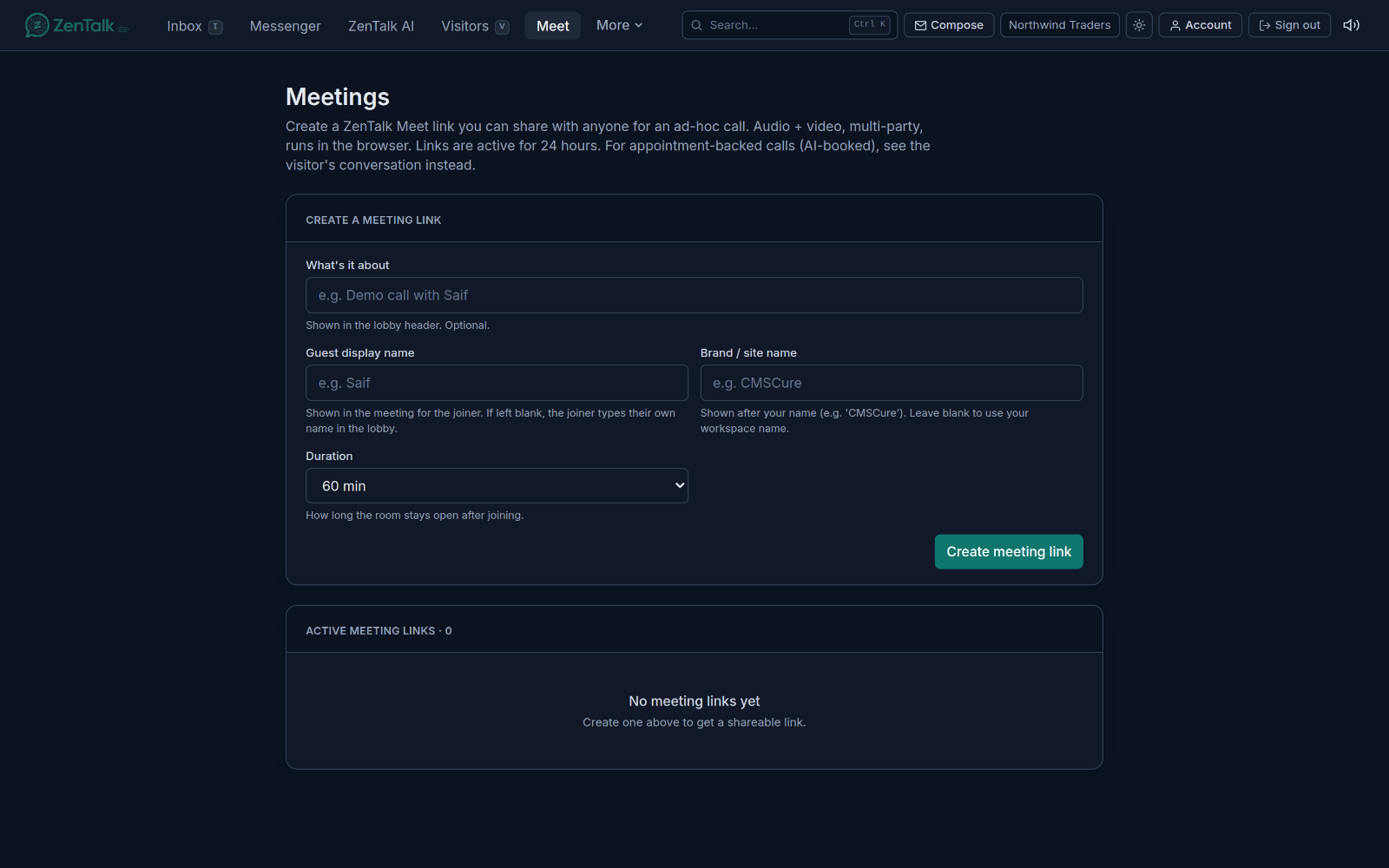
Open the Meet tab (the page is titled Meetings) and use the Create a meeting link card at the top. Every field is optional, so you can create a link with a single click.
- What's it about is a short topic shown in the lobby header (for example, "Demo call with Saif").
- Guest display name is the name shown for the person who joins. If you leave it blank, the joiner types their own name in the lobby before entering.
- Brand / site name appears after your name (for example, "CMSCure"). Leave it blank to use your workspace name.
- Duration sets how long the room stays open after people join: 15, 30, 60, 90, or 120 minutes. It does not apply when No time limit is on.
- Turn on No time limit if you want a link that never expires on its own, for an always-on room or a standing meeting. It stays open until you end or remove it.
- Turn on Waiting room if you want to approve each guest. Guests knock to join and wait until you let them in. You can admit, decline, or ask anyone to wait. Your team joins directly, and a declined guest sees a message that they were not admitted.
- Click Create meeting link.
A green Your meeting link is ready panel appears with the link, a Copy button, and an Open button. It also shows when the link expires, or that it never expires. Share the link by email, chat, or by pasting it anywhere.
The meeting list
Below the create card, Active meeting links lists the rooms your workspace has open, with a count. You only see and manage your own workspace's links. Each row shows:
- The topic (or "Meeting" if none was set).
- The guest name, the duration, who created it, and when it expires.
- The full join link.
Each row has three actions:
- Copy link puts the join link on your clipboard.
- Open opens the meeting in a new tab.
- Remove deletes the link after a confirmation. Anyone already in the room stays until they leave, but new join attempts are refused.
When there are no links yet, the list shows a "No meeting links yet" empty state prompting you to create one above.
Joining a meeting
Opening a join link takes you to a pre-join lobby first. You are never dropped straight into the call.
- If the meeting has a start time and it has not opened yet, the page shows a "Starts in" countdown and unlocks automatically when the join window opens (you can join up to 30 minutes before the start time).
- In the lobby you get a camera preview and mic level, plus Mic on / Mic off and Camera on / Camera off toggles, and a camera picker to switch devices. If your browser blocked camera or microphone access, the lobby tells you to allow it and reload.
- If no guest name was preset, type your name (shown as "Joining as"). You cannot join until it is filled in.
- Click Join meeting.
If the link was removed or has expired, the page shows a "Meeting closed" or "Cannot join" message instead.
Sharing a join link
To invite a customer or teammate, copy the link and send it however you like. There is nothing for them to install; they open the link, pass through the lobby, and join.
- Right after you create a room, use Copy in the green ready panel.
- For a link you made earlier, use Copy link on its row in the meeting list.
The same link works for you and for the person you send it to, so you can both join the same room.
In-meeting controls
Once you are in the room, a control bar at the bottom gives everyone these buttons:
- Mute / Unmute toggles your microphone.
- Stop video / Start video toggles your camera.
- Share / Stop share starts or stops screen sharing. Your screen replaces your camera while sharing.
- Grid / Speaker switches between a grid of all participants and a speaker view that focuses the active speaker. You can also click a tile to pin it as the main tile.
- Chat opens the in-meeting text chat. An unread badge appears on the button, and a short tone plays when a new message arrives.
- Settings lets you pick your microphone and camera.
- Leave disconnects you from the call.
The meeting host has extra controls:
- Lock / Unlock controls whether new people can still join.
- Mute all mutes every other participant's mic.
- End ends the meeting for everyone. On confirmation, an AI summary email and transcript are sent to the participants on record.
How meetings relate to conversations
Meet links you create here are stand-alone. They are not attached to a visitor's chat, which is why they are handy for people who are not in your inbox yet.
Appointment-backed calls are the other path. When a call is AI-booked or scheduled with a known visitor, it lives with that visitor's conversation and appointment rather than in this list, so open the conversation in the Inbox to run those. Ending a hosted meeting also sends an AI summary and transcript to the participants on record, giving you a written record of the call.
Related: manage live chats in the Inbox, handle scheduled and AI-booked calls in Appointments, and talk with your team in Messenger.