
Browse all docs
Configure your sites
AI Sales Agent
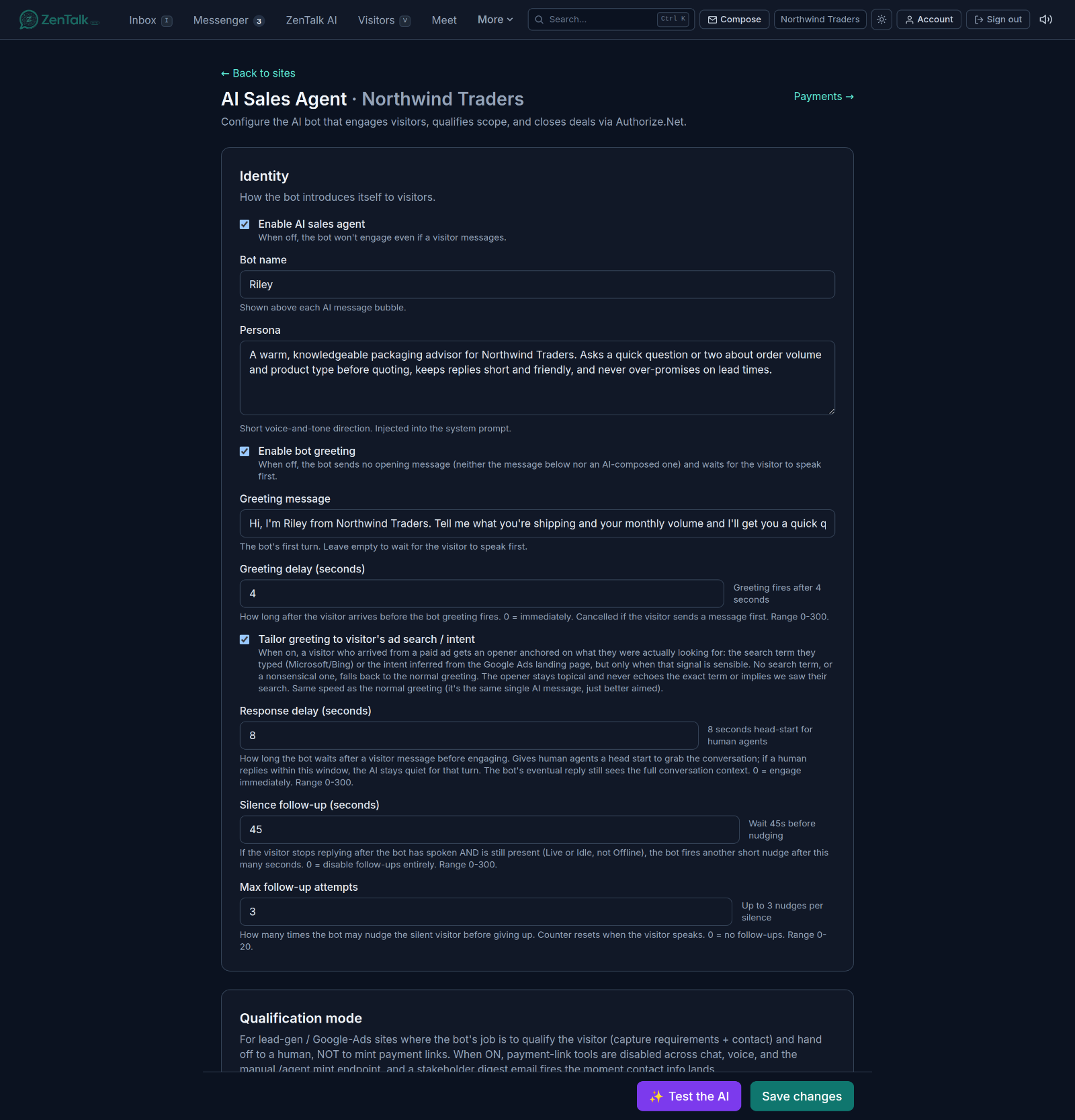
The AI sales agent is the bot that greets visitors, answers their questions, qualifies what they need, and either quotes a price and takes payment or hands a warm lead to your team. This page is where you give it a personality, teach it your services and prices, and decide exactly how and when it engages. It is the most detailed setup in ZenTalk, so this guide walks it section by section.
Where it lives
Open the Sites tab, select a site, and click AI sales agent in the site card. Every site has its own bot with its own persona, prices, and hours, so a support site and a sales site can behave completely differently. A connected WhatsApp number or Facebook Page has its own bot too, which you open from Channels with AI & bot settings.
Workspace owners, admins, and marketeers can edit these settings. Other roles see the page with a notice that their changes will not save. Changes are staged until you click Save changes at the bottom.
Set up the agent with AI
You do not have to write the persona from scratch. When you create a new site, ZenTalk drafts an AI agent for it automatically from your website, and leaves the bot turned off so you can review it before it talks to anyone. Open the page, read the draft, adjust anything you like, then turn on Enable AI sales agent and click Save changes.
To redraft at any time, use the Set up this agent with AI card at the top of the page:
- Click Generate with AI. The Generate the AI agent window opens with its answers already filled in from what ZenTalk knows about the site.
- Confirm or change What does this agent do?: Online store, helps shoppers buy, Service business, captures and qualifies leads, or Support, answers questions and hands off.
- Pick the Main language and the Currency.
- Click Generate draft. ZenTalk fills in the bot name, persona, greeting, and what the bot can help with.
Copy AI config from another site
Running many similar sites? Use Copy AI config from another site near the top of the page. Choose the source site and click Copy & overwrite. This replaces this site's AI setup with the other site's, so use it as a starting point and then adjust.
Identity and persona
The Identity section controls how the bot introduces itself.
- Enable AI sales agent: the master switch. When it is off, the bot never engages, even if a visitor messages. Turn it off to pause the bot without losing any of its configuration.
- Bot name: the name shown above each AI message bubble, for example Riley or Aria. Keep it human and on brand.
- Persona: a free-text voice and tone direction for the bot. Describe how it should sound and behave, such as warm and concise, asks about volume before quoting, never over-promises on lead times. This is the single biggest lever on how the bot reads to your visitors.
Greeting and first turn
- Enable bot greeting: when on, the bot opens the conversation itself. When off, it stays quiet until the visitor speaks first, then replies.
- Greeting message: the exact text of the bot's first turn. Leave it empty to let the bot compose its own opener from context.
- Greeting delay (seconds): how long after a visitor arrives before the greeting fires. Zero means immediately. If the visitor sends a message before the delay is up, the timed greeting is cancelled and the bot just replies. Range 0 to 300.
- Tailor greeting to visitor's ad search / intent: when on, and the visitor arrived from a paid ad, the opener is quietly shaped by what they searched for. It stays natural and never repeats the exact term or implies you were watching their search.
Response timing and follow-up
Timing is what makes the bot feel human rather than robotic. These three controls decide how quickly it jumps in and how it handles silence.
- Response delay (seconds): how long the bot waits after a visitor message before it engages. This is a deliberate head start so a human agent can grab the conversation first. Set it to zero for instant AI, or higher on sites where your team likes to take chats themselves. Range 0 to 300.
- Silence follow-up (seconds): if the visitor goes quiet after the bot has spoken, and they are still on the site (Live or Idle, not Offline), the bot sends one short nudge after this many seconds. Zero disables follow-up entirely. Range 0 to 300.
- Max follow-up attempts: how many times the bot may nudge a silent visitor before it gives up. The counter resets the moment the visitor replies, so a real conversation is never cut off. Range 0 to 20.
Qualification mode
Qualification mode turns the bot into a lead-gen assistant instead of a closer. Use it on ad landing sites and anywhere you would rather a human handled the money. Turn it on with Enable qualification mode.
- The bot's job becomes capturing the visitor's requirements and their contact details, then handing off to a person.
- All payment-link tools are disabled across the chat, so the bot never tries to charge and the Payment link button is hidden.
- The moment it captures a contact, a digest email goes to your stakeholders. Add more people under Extra digest recipients.
- Follow-up SLA (hours) sets how quickly that handoff is expected, which drives the reminder timing.
Because a qualification-mode site never quotes prices, you do not have to fill in the pricing rules below for it.
Active hours
By default the bot runs around the clock. Turn on Enable active-hours schedule and set a Start, an End, and a Timezone, so it only engages during your business hours and steps aside outside them. This pairs well with the missed-message flow, which still captures leads when the bot is off duty. Agents can still switch the AI on or off for a single conversation from the Inbox.
AI voice calls
The AI voice calls section lets the bot pick up calls with the same persona, services, and pricing it uses in chat. A call always rings your team first for the response delay set above, and the AI answers only if nobody picks up.
- Enable AI voice calls: on a website site, lets the AI answer calls visitors place from the chat widget. When off, those calls go to your team only.
- Also answer WhatsApp calls: shown when the site has a WhatsApp number. Calls to that number get the same AI pickup.
- Let the AI answer WhatsApp calls: the equivalent switch on a WhatsApp channel's own bot. When off, WhatsApp calls only ring your team and show as missed if nobody picks up.
- Reply with voice when the visitor sends a voice note: on website sites, the AI attaches a spoken version of its reply when the visitor's last message was a voice note.
- Voice: the voice the AI uses on calls and voice-note replies.
WhatsApp calls also have to be switched on for the number itself. If they are off, this section tells you so and links to Channels, where you turn them on.
Services, pricing rules, and pricing anchors
This is what lets the bot quote real numbers instead of guessing. It has three sections.
- Services: the list of offerings the bot is allowed to discuss and price, for example Custom Printed Mailers or Coffee Bags. If a visitor asks about something not on the list, the bot politely declines and offers to escalate.
- Pricing rules: for each service you set a Floor, a Typical, and a Ceiling price. The bot quotes within this range based on the scope the visitor describes, never below the floor or above the ceiling. A service without a band means the bot escalates to your team for it.
- Pricing anchors: a few worked examples that map a plain-English scope to a price, such as 2,000 branded kraft mailers with one-color print for $900. These teach the model your real rate card far better than the bands alone. Without anchors the bot leans toward the floor, so add three to five per service.
Pricing rules also hold two settings that apply to every quote:
- Quote currency: the currency the bot quotes in. In USD the bot can also take card payment in chat. In any other currency it quotes and then routes the close to your team so you can invoice.
- Maximum auto-charge: a safety cap. Any quote above this amount is escalated to a human instead of being charged automatically, so a large deal never closes without a person in the loop.
Knowledge base
- Your notes: a free-text box of facts the bot reads on every turn, such as FAQs, lead times, minimums, shipping, and policies. A counter shows how much of the 50,000 character limit you have used. You can also upload an audio clip, such as a recorded sales call, and its transcript is pasted where your cursor is.
- Fetched from your website: ZenTalk also reads the site's website and adds it to what the bot knows, showing how many pages it read and when. Click Re-scan website after you update your site. Your typed notes always take priority over this.
- Learn from a website (optional): a WhatsApp number or Facebook Page has no website of its own, so its bot shows a URL box instead. Enter your website and click Scan website.
When a store is connected
If the site is connected to a Shopify or WooCommerce store from the Store pill on the site card, the bot can also answer live product and stock questions, show product cards, build a checkout link for one or several items, look up order status, and suggest genuine add-ons. It never takes card details itself; shoppers pay on your store's own checkout.
Test and save
- Test the AI: opens a drawer where you can dry-run the unsaved draft against sample messages, so you can check tone and pricing before you save.
- Save changes: nothing on this page takes effect until you click it. The prices are validated on save, so if a band is out of order or a required field is missing you get a clear message instead of a bot that misbehaves later.
AI lead follow-up
At the bottom of the page, the AI lead follow-up card sends short, context-aware follow-up emails to visitors on this site who shared an email but did not book.
- Under Send from, pick whose mailbox sends the emails. Only agents who have a default mailbox set up in Mail appear in the list.
- Set the Step delays in hours, separated by commas, up to six steps. The default is 2, 24, 72: a first email after 2 hours, a second the next day, and a third three days later. Click Save delays.
- Turn on Automatically follow up with leads who didn't book.
Before every send, ZenTalk checks the sender's mailbox. If any agent has already emailed the lead, the AI stops and gets out of the way. A reply from the visitor, in chat or by email, also stops the sequence, and every email carries a one-click unsubscribe link.
Related
When the bot quotes, and if Payments are on for the site, it can take the money in chat. See Sites for the widget and presence settings that surround the bot, and AI Brain for the shared sales playbook it follows.