
Browse all docs
Deliver the work
Sheets
The Sheets tab is a place to build collaborative spreadsheets inside ZenTalk: create one, edit it in a full grid, work on it live with teammates, and even ask the AI to read or change it for you.
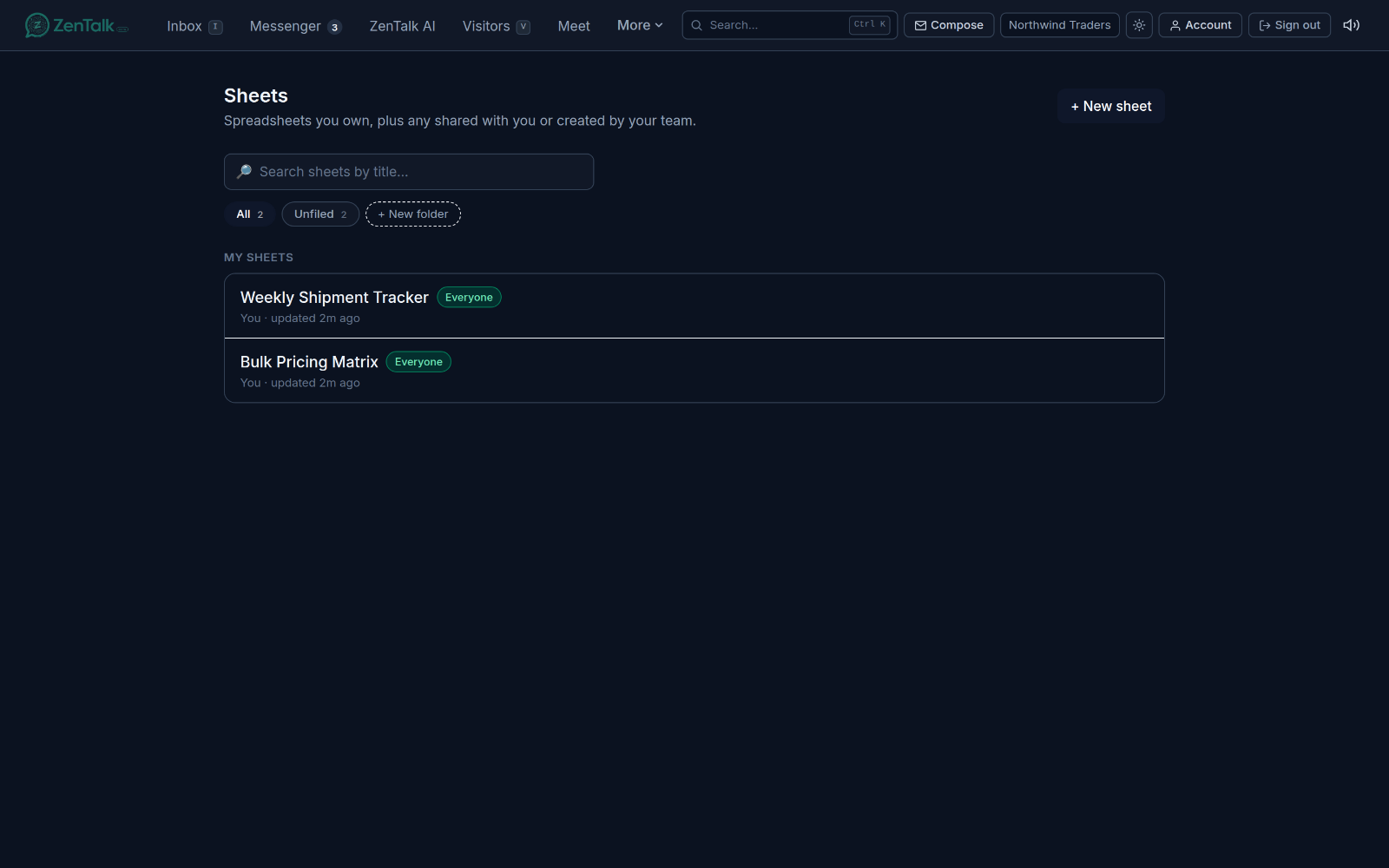
What Sheets is and who can use it
Sheets gives your workspace real spreadsheets with formulas, multiple tabs, folders, sharing controls, and version history. The tab only appears when the SHEETS module is enabled for your workspace. If it is off, opening Sheets sends you back to the dashboard.
The list page shows two groups: My sheets, the ones you own, and Shared with me / my team, the ones someone else created that you can reach. Each row shows the title, a visibility pill, who last touched it, and when.
Creating a sheet
- Open the Sheets tab.
- Click + New sheet at the top right (or the same button in the empty state if you have no sheets yet).
- A sheet called "Untitled sheet" is created and you are taken straight into the editor, where you can rename it and start typing.
To remove a sheet, hover its row in the list and click Delete. You are asked to confirm, and the delete cannot be undone. Delete is only offered on sheets you own or can edit.
The spreadsheet editor
The editor is a full grid with a toolbar across the top. Your work is saved automatically as you type: there is no Save button. A small status shows "Saving...", "All changes saved", or "Save failed" so you always know where you stand.
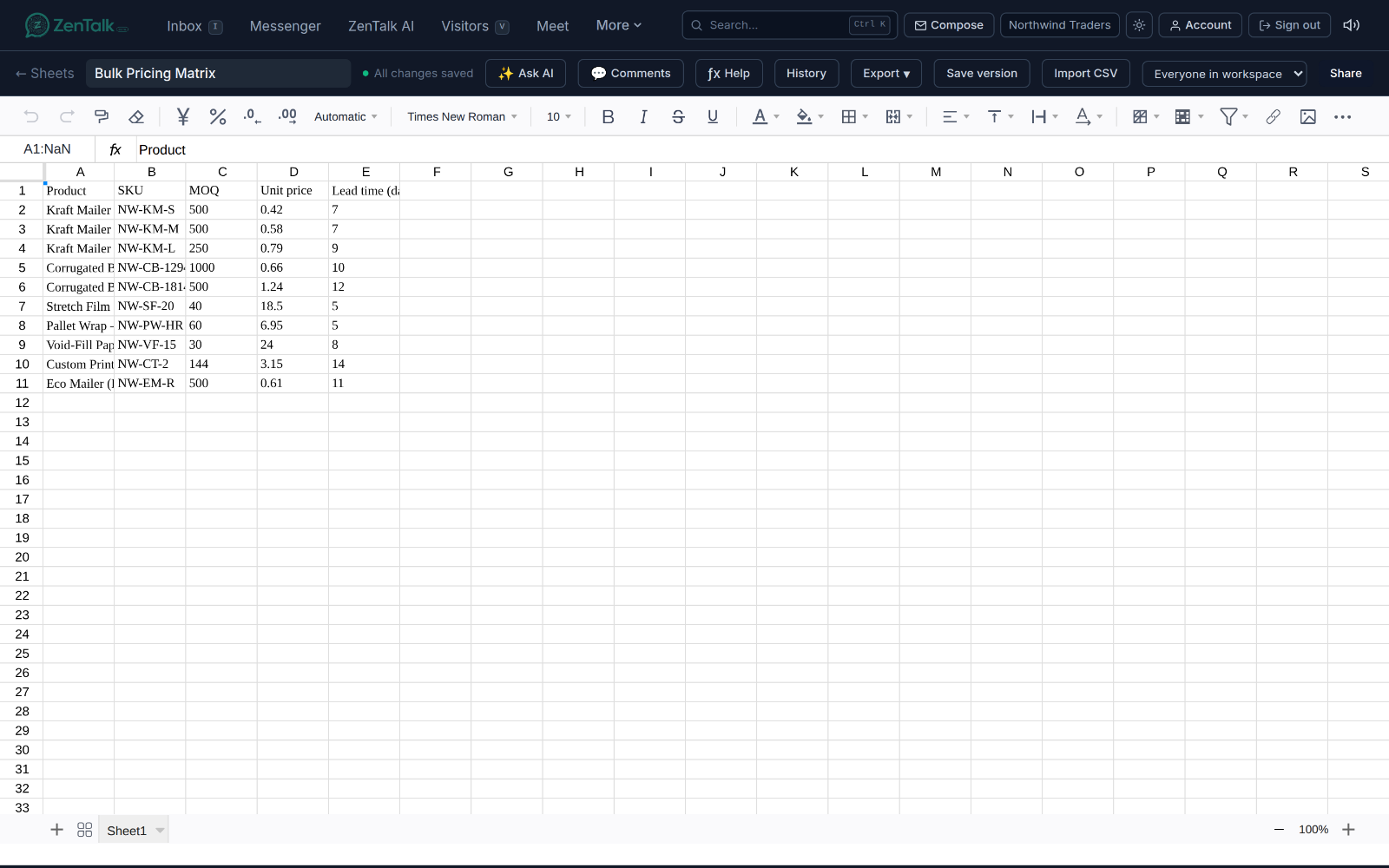
Key toolbar actions:
- Ask AI opens the AI panel (see below).
- Comments opens comments and @mentions for the sheet.
- The formulas and functions help button explains the functions you can use.
- Version history lets you review and restore earlier states.
- Export downloads the sheet (see the exporting section).
- Editors can save a named version snapshot and import a .csv file as a new tab.
Real-time co-editing
More than one person can work in the same sheet at once. When teammates are in a sheet with you, their initials appear as colored avatars in the toolbar (up to five are shown). Edits made by anyone flow to everyone live, and when the AI changes the sheet the grid reloads automatically so you see the new values without refreshing.
Version history and restore
Open Version history to browse earlier states of the sheet. Selecting a version loads it into the grid read-only and shows a diff summary of what was added or removed since. From there you can:
- Restore this version to bring the sheet back to that state (editors only).
- Back to current to leave the preview and return to the live sheet.
Versions are captured as the sheet is edited, and downloads are logged in the same activity view, so nothing happens invisibly.
The Ask AI panel
Click Ask AI to open a side panel that can read and edit the open sheet using your own access. It works on the current sheet by name, so you can ask things like:
- "Total column C into C20 and label it."
- "Add a row: Acme, 12, 2026-09-01."
- "What is in this sheet? Summarize it."
- "Clean up the header row."
When the AI changes anything, the message shows an "Updated this sheet" note and the grid reloads live. AI edits are saved as reversible versions, so you can always roll back in version history. If you only have view-only access, the AI can read and summarize the sheet but cannot change it. The conversation for a sheet is remembered per browser; use New in the panel header to start a fresh chat.
Visibility, folders, and sharing
The owner controls who can see a sheet with the visibility picker in the toolbar:
- Only me (private): only you can open it.
- My reporting line (team): you and the leads you report up to can open it.
- Everyone in workspace: anyone in the workspace can open it.
Click Share to open sharing. There you can add specific teammates who can open and edit the sheet on top of the visibility rule. Search by name or email and toggle the people you want.
On the list page, use the folder bar to organize sheets into folders and to search by title. Owners and admins (and the folder's creator) can create, rename, and delete folders. Hover a sheet row to move it into a folder, or create a new folder and move it in one step.
Public share links
From the Share dialog you can mint a public link that lets anyone with the URL view a read-only copy without a ZenTalk login. You can:
- Protect the link with a passcode viewers must enter.
- Copy the link, turn it off and on, or Reset link to generate a new URL and break the old one.
- Revoke the link entirely.
If a workspace or organization administrator has turned off public sharing, the section is locked and any existing link stays inactive.
Exporting with an audit trail
Use the Export menu in the toolbar to download the sheet:
- Excel (.xlsx)
- CSV (first tab only)
Every export is recorded in an Export history drawer: who exported it, when, in what format, and the file size. Because the server keeps a copy at export time, any past export can be re-downloaded byte-for-byte from the log. The history is visible to anyone who can read the sheet, so an export can never happen invisibly.
Comments and @mentions
Click Comments to open a thread attached to the sheet. Leave notes for the people you work with and use @mentions to pull a teammate into the conversation, so feedback lives next to the data instead of in a separate chat.
Related: keep long-form write-ups in Docs, and track the wider effort in Projects.