
Browse all docs
Customers and sales
Appointments
The Appointments tab is where you set up who the AI can book meetings with, keep your office locations current, and watch the meetings it books roll in. The AI does the booking from chat; this tab is the control panel behind it.
What this tab is for
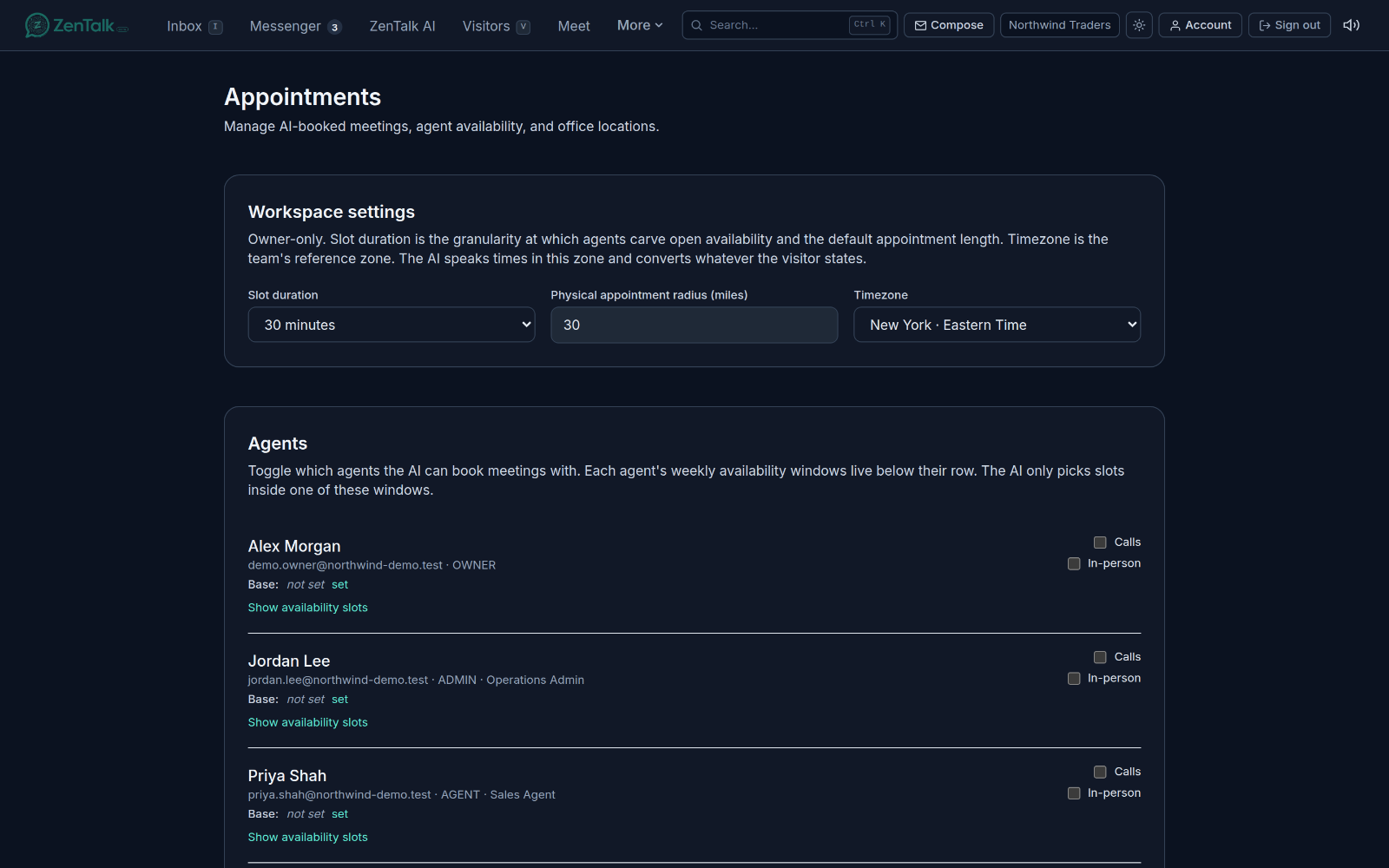
Appointments in ZenTalk are booked by the AI directly inside a live chat. When a visitor asks for a call or an in-person meeting, the bot looks at which agents you have made bookable and the weekly windows they have open, then offers real slots and confirms one. This tab does not have a calendar you draw on and there is no "new appointment" button for agents. What you do here is decide who is bookable, define the hours the AI may pick from, list your offices, and review or cancel what has been booked.
Open it from the main navigation at the top of the dashboard. The page has four stacked sections: Workspace settings, Agents, Office locations, and Upcoming appointments. What you see depends on your role (see Permissions below).
Workspace settings
This section is owner-only. Everyone with admin access can see it, but only the workspace owner can change the values. It has three controls:
- Slot duration - the granularity agents carve their open availability into and the default length of a booked meeting. Choose 15, 30, 45, 60, 90, or 120 minutes.
- Physical appointment radius (miles) - how close a visitor has to be to one of your offices to qualify for an in-person booking. Accepts 1 to 500.
- Timezone - the team's reference zone. The AI speaks times in this zone and converts whatever time the visitor states into it. Pick from the curated list of common zones.
Changes save as you edit them and you get a "Settings saved" confirmation.
Making agents bookable and setting their hours
The Agents section is where you tell the AI who it may book and when. It is available to owners and admins.
Each agent has two checkboxes on their row:
- Calls - the AI may book phone or voice-call meetings with this agent.
- In-person - the AI may book physical meetings at an office with this agent.
Turning a checkbox on is only half the job. The AI also needs at least one weekly window to pick real slots from. To add windows, click Show availability slots under the agent's row, then:
- Choose a day of the week.
- Set a start and an end time in 24-hour format (start must be before end).
- Choose the kind: Call or In-person.
- Click Add window.
Windows are grouped under "Call windows" and "In-person windows". To change one, click Edit on the row to adjust its day and times, then Save. Use Remove to delete a window. The kind of a window cannot be edited in place; to switch a window between Call and In-person, remove it and add it again.
Each agent row also shows a Base location. Click set or change next to it, pick a country, then type to filter and choose a city. This is used when matching an agent to in-person requests. Use Clear base to remove it.
Office locations
Also owner and admin. For in-person bookings, a visitor has to be within the workspace radius of one of the offices you list here, so this list has to be accurate. To add an office, fill in every field:
- Office name (for example, Brooklyn HQ).
- Address line.
- City.
- Country as a two-letter ISO code (for example, US).
- Latitude and longitude as decimals. These are required for the radius check.
Click Add location to save it. Each office shows its address and coordinates in the list; click Remove to delete one (you will be asked to confirm).
How the AI books from chat
With the pieces above in place, booking happens on its own inside a conversation. When a visitor asks to meet, the AI:
- Finds agents you have marked bookable for the requested kind (call or in-person).
- Reads their weekly availability windows and, for in-person, checks the visitor is inside the office radius.
- Offers real open slots in your workspace timezone, converting whatever time the visitor states.
- Confirms the choice and creates the appointment, which then appears under Upcoming appointments.
The booked record captures the visitor's name, email, and phone from the shared customer record, so a good contact number on file matters for reach-out. If no agent is bookable or no window is open, the AI does not force a slot; it offers to have the team follow up manually instead.
Reviewing and cancelling appointments
The Upcoming appointments section lists what the AI has booked. Everyone can see this section. Each row shows:
- The start time rendered in the workspace timezone, plus the kind (CALL or PHYSICAL) and the duration in minutes.
- The assigned agent's name and email.
- The visitor's name, email, and phone (whatever is on record).
- For in-person meetings, the office it is at (name, city, country).
- Any notes, and the current status.
To cancel a meeting, click Cancel on its row and confirm. The Cancel button only appears to owners and admins, and only on appointments whose status is still SCHEDULED. Agents can view the list but cannot cancel. When there is nothing to show, the section reads "Nothing booked yet."
Who can see and do what
- Owner - full access, and the only role that can change Workspace settings.
- Admin - can manage agent availability, office locations, and cancel appointments, but cannot change owner-only settings.
- Agent - sees only the Upcoming appointments list and cannot cancel. Some contact details may be redacted for non-owner roles.
Related pages: bookings start life in a conversation, so the Inbox is where the AI actually does the booking. The visitor and their contact details on each row come from the shared customer record. For running the live call itself, see Meet.