
Browse all docs
Customers and sales
Tickets
The Tickets tab is where you track support issues and requests as numbered, assignable records so nothing gets lost after a chat ends or an email lands.
What the Tickets tab is for
A ticket is a single support issue with a subject, a description, a status, a priority, an optional assignee, tags, and a conversation thread. Every ticket gets a number like #42 so you can refer to it. Tickets are how you keep working on a problem after the live chat is over, and how email replies from the requester stay grouped in one place.
How a ticket gets created
There are three ways a ticket comes into existence:
- From a chat. In an inbox conversation, use the Convert to ticket action. This turns the current chat into a ticket and links it back to the original conversation.
- From email. When a requester replies to a ticket by email, the inbound message threads back onto the ticket as a comment from the visitor, so an email exchange lives inside the ticket.
- Manually. Click + New ticket at the top right of the Tickets tab to capture a request that came from outside chat, such as a phone call or an in-person conversation.
Creating a ticket manually
- Click + New ticket.
- Enter a Subject. This is required.
- Optionally add a Description of the issue or request.
- Pick a Priority: Low, Normal, High, or Urgent.
- Optionally add Tags as a comma-separated list, for example "billing, sso".
- Click Create ticket. You are taken straight to the new ticket.
The ticket list
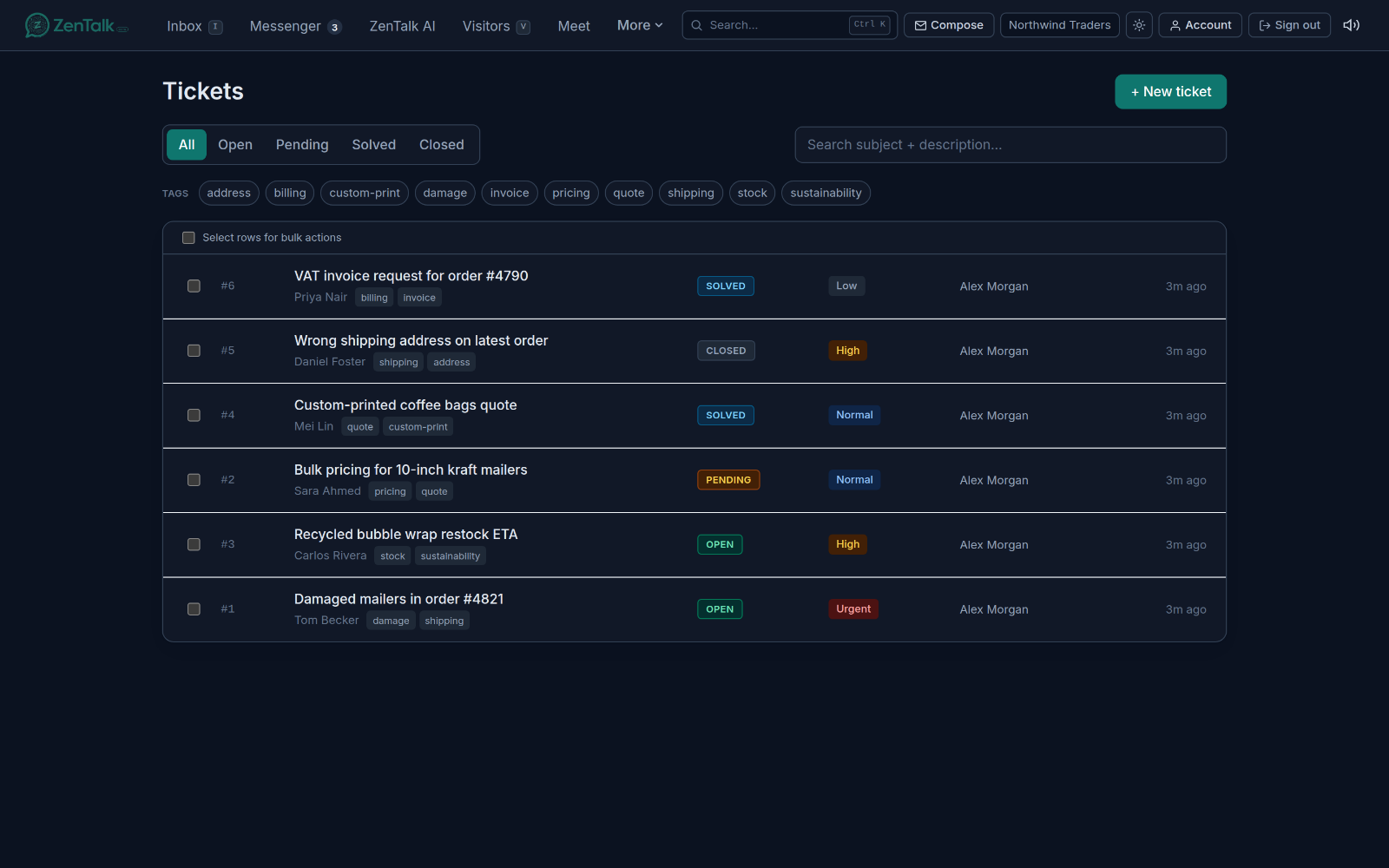
The Tickets tab shows one row per ticket. Each row displays the ticket number, the subject, the requester name or email, any tags, the status, the priority, the assignee (or "Unassigned"), and how long ago the ticket was last updated. Click any row to open the ticket. Click a tag chip on a row to filter the list by that tag. When there are no tickets yet, the list tells you to create one or convert a chat conversation from the inbox.
Statuses and priority
Every ticket has one status:
- Open is a live ticket that still needs work.
- Pending is waiting on someone, for example the requester.
- Solved means the issue is handled but not yet archived.
- Closed is finished and locked. You cannot post new replies on a closed ticket.
Priority is one of Low, Normal, High, or Urgent, and it shows as a colored label on the row so urgent work stands out.
Filtering and finding tickets
- Status tabs. Switch between All, Open, Pending, Solved, and Closed at the top of the list.
- Search. Use the search box to match against the subject and description of tickets.
- Tags. When your workspace has tags, a chip strip appears above the list. Click a tag to filter by it, and click Clear to remove the tag filter.
Working on several tickets at once
Select the checkbox on one or more rows, or use the select-all checkbox at the top of the list, and a black action bar appears. From it you can:
- Close the selected tickets.
- Mark solved.
- Reopen them back to Open.
- Set priority to Low, Normal, High, or Urgent.
Assigning and tagging are done one ticket at a time inside the ticket, not from the bulk bar.
Opening and resolving a ticket
Click a ticket to open it. The main panel shows the description and the full thread of comments. The side panel on the right is where you manage the ticket:
- Status and Priority dropdowns update the ticket instantly.
- Assignee assigns the ticket to a teammate, or leave it Unassigned.
- Tags can be added or removed here.
- Requester shows the linked visitor with name, email, phone, and country.
- Source links back to the original chat conversation when the ticket came from a chat.
- Public link gives you a shareable link to the ticket that you can copy.
- The footer shows when the ticket was opened, last updated, and closed.
Replying
Type in the reply box at the bottom of the thread and press Enter to send, or Shift and Enter for a new line. Check Internal notefirst to leave a note that only teammates can see; internal notes show in amber. A plain reply to the requester is also emailed to them. To compose a fuller email, use the Email reply button, which is available when the requester has an email on file.
To resolve a ticket, set its status to Solved, then to Closed when it is fully finished. A closed ticket hides the reply box; reopen it by setting the status back to Open if more work is needed.
How tickets relate to conversations and mail
Tickets sit alongside the rest of ZenTalk rather than replacing it. A ticket that started as a chat keeps a Source link back to that inbox conversation, so you can always jump to where it began. The requester is the same shared customer record you see everywhere else, so a ticket links straight to that person. Email is woven in both directions: replies you send go out as email, and the requester's email replies thread back onto the ticket as comments, which keeps a helpdesk email exchange in one place.
Related: see the Inbox for the chats you convert into tickets, Mail for the email helpdesk that feeds ticket replies, and Customers for the shared record behind every requester.