
Browse all docs
Conversations
Ratings
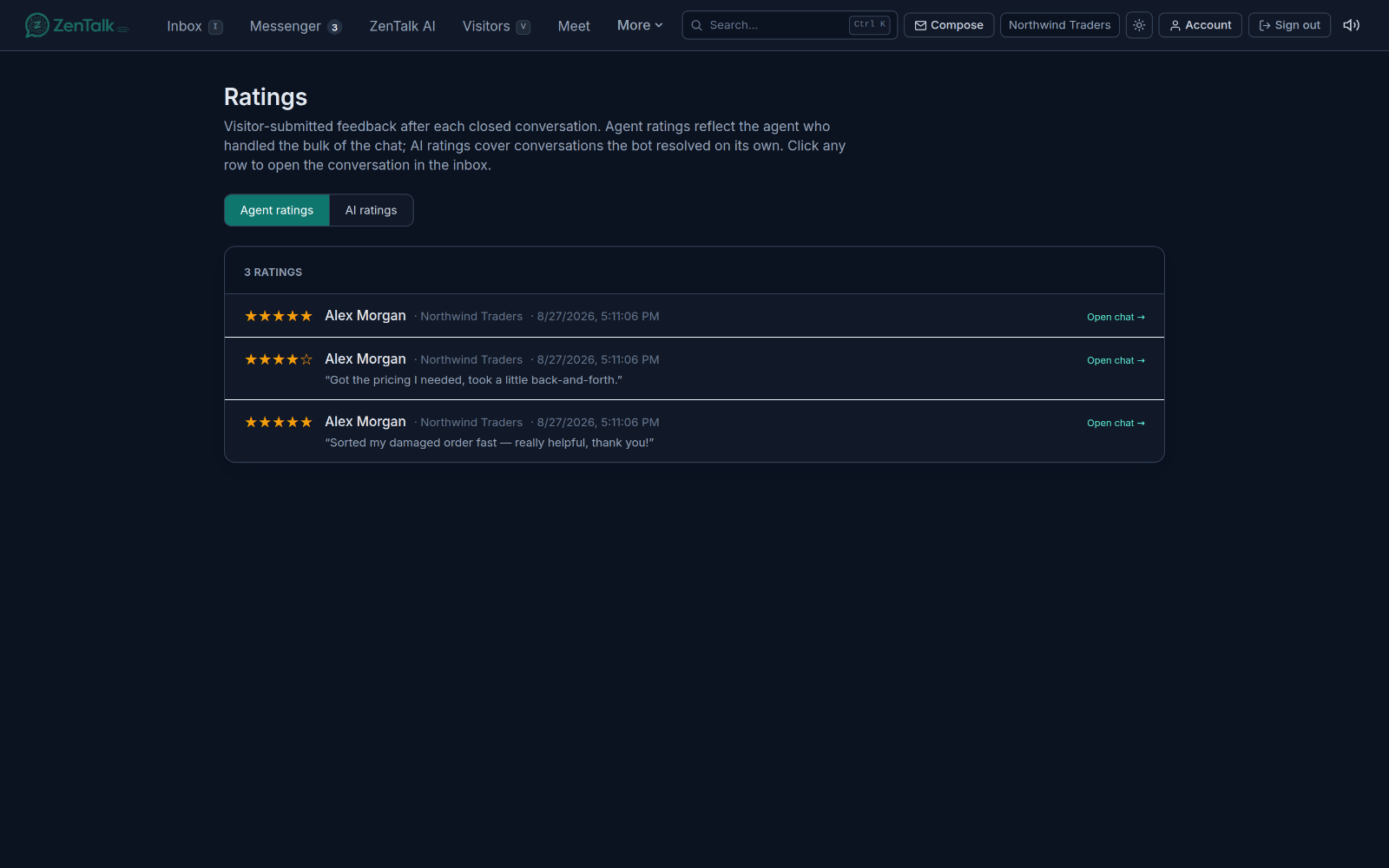
The Ratings tab collects the star ratings and written feedback your visitors leave after a chat, so you can see how satisfied customers are and how each agent is performing.
What a rating is and where it comes from
A rating is customer satisfaction feedback a visitor submits after a conversation is closed. It has two parts: a score from one to five stars and an optional written comment. The visitor leaves it from the chat widget once the conversation wraps up, so every rating here reflects a real customer's opinion of a real chat.
ZenTalk splits ratings into two groups based on who handled the chat:
- Agent ratings cover conversations where a human agent handled the bulk of the chat. Each one is credited to the agent who did the work.
- AI ratings cover conversations the bot resolved on its own, without an agent stepping in.
Getting to Ratings
Open the Ratings tab from the top navigation. At the top of the page you will see two buttons: Agent ratings and AI ratings. Click either one to switch between the two lists. The header above the list shows the total count, for example "12 ratings".
The page updates on its own. When a visitor submits a new rating, it appears in the matching list without you needing to reload.
Reading the list
Each list shows one row per rating, newest activity brought in as it lands. A row contains:
- Stars on the left, filled from one to five, showing the score the visitor gave.
- Who is credited: the agent's name on the Agent ratings list, or "AI" on the AI ratings list.
- Site: the website the conversation came from.
- Date and time the rating was submitted.
- Comment: if the visitor wrote one, it shows in quotes under the row. Not every rating has a comment.
When a list has no ratings yet, the page tells you so. Ratings appear there after a visitor submits feedback on a conversation an agent handled, or on one the bot resolved on its own.
Opening the conversation behind a rating
Every row is clickable. Click any rating (or the "Open chat" link on the right of the row) to jump straight into that conversation in the inbox. This is the fastest way to read the full transcript behind a score, see exactly what happened, and understand why a visitor rated the way they did.
Filtering and who sees what
The two tabs are the main way to filter: switch between Agent ratings and AI ratings to focus on human-handled or bot-handled chats. What each person sees also depends on their role:
- Owners, admins, and marketeers see all agent ratings and all AI ratings for the workspace.
- A regular agent sees only their own agent ratings, and does not see the AI ratings list.
Reading agent performance
The Agent ratings list is your at-a-glance read on how the team is doing. To gauge an individual agent, scan the rows credited to their name and look at the mix of star scores and the tone of the comments. Because a rating is only credited to the agent who handled the bulk of a chat, a score reflects that agent's own work on that conversation.
- Open the Agent ratings tab.
- Look for the agent's name on each row and note the star counts they are getting.
- Read the quoted comments for the "why" behind low or high scores.
- Click a row to open the chat and see the full context before you draw a conclusion.
Related: work the conversations themselves in the Inbox, dig into quality and themes in Insights, and track team-wide trends over time in Analytics.