
Browse all docs
Deliver the work
Projects
The Projects tab is where your team runs delivery work: kanban tasks, versioned file deliveries, customer sign-off, and a running activity log, all tied to one customer record.
What the Projects tab is for
Projects is a lightweight delivery workspace. Each project holds a kanban board of tasks, a set of deliveries (files or links you hand off in versions), an optional onboarding contract, a members list, and an activity feed. A project can be attached to a customer or left as an internal initiative.
The tab appears only when your workspace has the PROJECTSmodule enabled. Team members with that module can see and run projects even if they do not have the chat module, so developers and designers can work here without touching the inbox.
Finding and creating a project
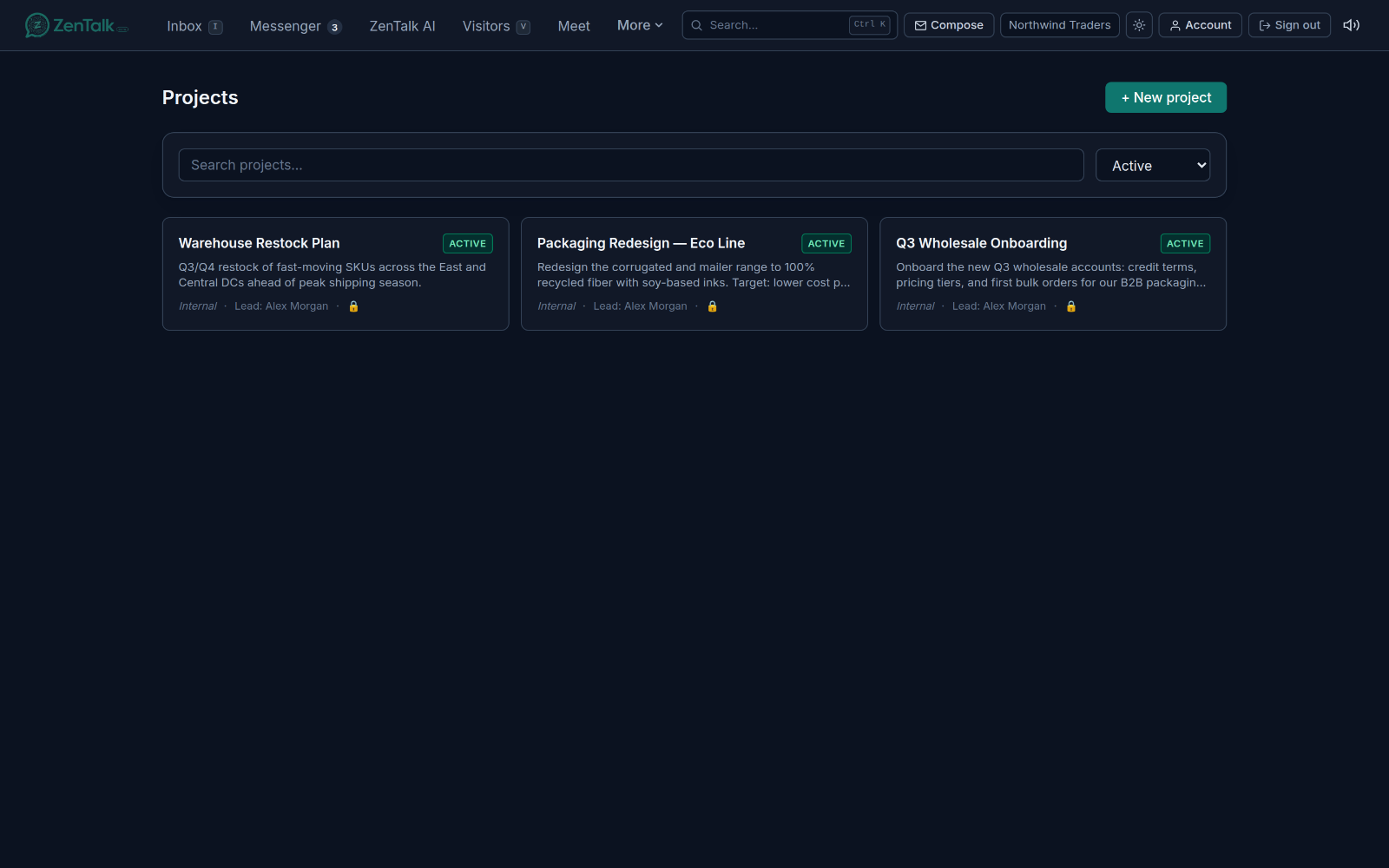
Open Projects from the top navigation. You land on a grid of project cards. Use the search box to filter by name, and the status dropdown to view Active, Paused,Completed, Archived, orAll. Choosing All groups the cards under each status heading. Each card shows the project name, status pill, the linked customer (or "Internal"), and the lead.
To start a project:
- Click + New project.
- Enter a Name and an optional description.
- Pick a Customer from the searchable picker, or leave it blank for an internal project. Type a few characters of a name, email, or phone to filter the list.
- Choose a Lead. It defaults to you, or pick another agent.
- Set Visibility: Customer (visible to the customer once deliveries land) or Internal (staff only).
- Click Create project to open its detail page.
You can also start a project pre-filled for a specific customer from that customer's page. When a project already has a customer, that customer name links straight to their record.
The kanban board and tasks
The board has four fixed columns: To do,Doing, Review, and Done. Each column shows a count of its cards.
- Add a task: click the + on a column header, type a title, and press Add. The task lands in that column.
- Move a task: drag a card between or within columns. On a touch device, use the grip handle on the card to drag. Moving a card to a column changes its status.
- Open a task: click a card to open its detail modal.
In the task detail modal you can set:
- Title and Description.
- Assignee: pick any agent, or leave it unassigned. The assignee shows on the card.
- Due date: shown on the card, and turned red when overdue and not yet done.
- Visibility: Customer-visible or Internal. Internal tasks carry a lock marker.
Click Save to apply changes. Each task also has a comment thread. When posting a comment you toggle whether it isVisible to customer or Internal only, and each comment shows a pill so you can see at a glance what the customer can read. Use Delete in the modal to remove a task.
Deliveries and versions
A delivery is a piece of work you hand off, tracked in numbered versions. Click + New delivery, give it a title (for example "Homepage v1") and an optional description, then create it. Each delivery lists its versions and shows who started it and when.
To add a version, click + Version on the delivery and choose:
- File upload: attach a file (capped at 25 MB). The version gets a Download link.
- External URL: paste a link such as Drive, Figma, or GitHub. Use this for anything larger than 25 MB. The version gets anOpen link.
Add optional Release notes to describe what changed; these can be edited later by expanding the version. Every version has its own Feedback thread, and the customer can post feedback there too (their entries are marked as customer). Versions are numbered automatically (v1, v2, and so on), and you can delete a version or a whole delivery, which also removes its feedback.
Sign-off and acknowledgement contracts
Projects support two e-signature style approval flows, both recorded with an audit trail for chargeback evidence.
Onboarding contract
Each project has one collapsible Onboarding contractsection. The lead adds the contract text (scope, deliverables, payment terms, and so on) and can require the signer's company name and title. Until it is signed it shows awaiting signature; once the customer signs it shows who signed, their company and title, and the date. A signed contract offers a View signed PDF link and an audit trail with the signer's IP address and browser.
Per-version sign-off
On any delivery version you can click Require sign-off. While it is required but unsigned, the version showsAwaiting customer sign-off and the next version is blocked until the customer signs. Once signed, it shows the signer and date with a View PDF link. You can Stop requiringit at any time.
Per-delivery acknowledgement
Each delivery can carry an Acknowledgement contract strip. Add one to gate the team from starting the next delivery until the customer acknowledges receipt. While unsigned it shows an amber "awaiting acknowledgement" bar; you can Edit it, orDelete it as an escape hatch to clear the gate when a customer is unresponsive. When signed it turns green with aView PDF link and the same audit trail.
How projects connect to the customer
A project attached to a customer links back to that customer's record, and customer-visible tasks, comments, deliveries, and feedback are what the customer sees. If the project is customer-visible and the customer has an email on file, the lead sees an Email portal link button that sends the customer a one-time sign-in link so they can open their portal, review deliveries, leave feedback, and sign contracts.
If the project was spawned from a conversation, an Open conversation link on the detail page takes you back to that chat.
Members, status, and activity
- Members: add agents to the project. Agents with the AGENT role only see projects they are a member of; OWNER and ADMIN see every project.
- Status: the lead or an admin can flip the project between Active, Paused, Completed, and Archived from the status dropdown at the top.
- Activity: the collapsible activity feed logs project actions such as task moves, delivery versions, comments, and feedback, with who did it and when.
Related: link a project to a person on the Customerspage, plan the work in collaborative Sheets, and write it up in Docs.