
Browse all docs
Setup and admin
The Organization Tab
The Organization tab groups several ZenTalk workspaces under one parent company, so an agency or a multi-brand team can see everyone and manage every workspace from one place.
What an organization is
An organization sits one level above your workspaces. A single company can run many separate workspaces (one per brand, client, or department) and still belong to the same organization. When your workspace is part of one, the Organization tab shows the parent company at the top: its name, its primary domain, the total number of members, and the total number of workspaces it contains. Your own role in the organization appears as a badge next to the name.
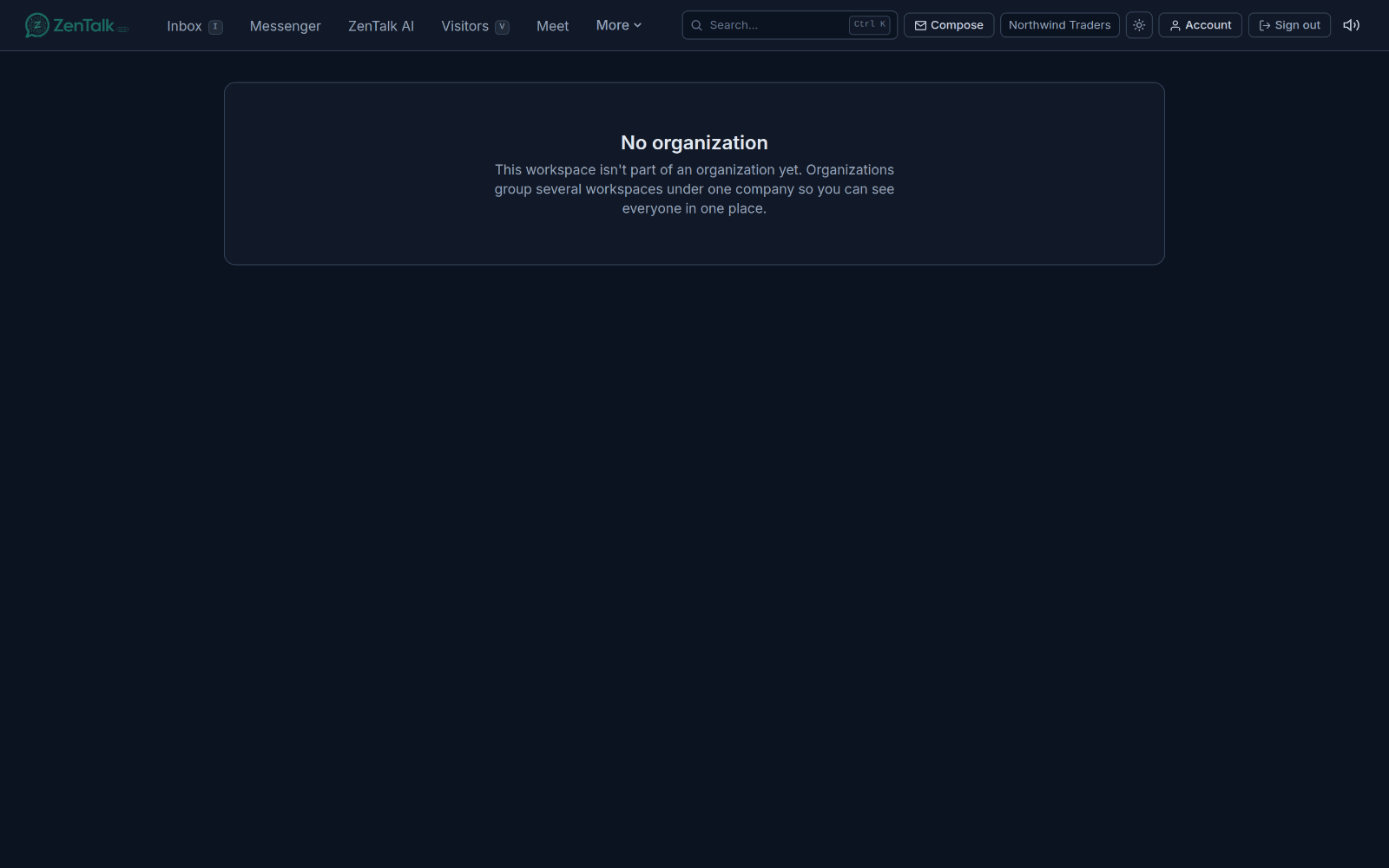
If your workspace is not part of an organization, this tab shows a short "No organization" message instead. Organizations exist to group several workspaces under one company so you can see everyone in one place, so the rest of this page only applies once your workspace has been joined to one.
Members and org roles
The Members list at the bottom of the page is the full directory of everyone in the organization, across all of its workspaces. Each row shows the person's name, their email, how they joined, their organization role, and the date they joined. Use the search box at the top of the list to filter by name or email.
There are two main organization roles:
- Owner - the top level of the organization. Owners can manage the workspaces list (the switch off and switch on controls) and change the Messenger reach setting.
- Member - a regular person in the organization. Members can see the organization and its directory but cannot change the governance controls.
An Admin role also exists in the directory and is styled distinctly from a plain member. The controls described below are reserved for organization owners (and platform super admins).
The list of workspaces
The Workspaces panel lists every workspace inside the organization. It is only visible to organization owners and super admins. Each workspace row shows the workspace name, how many members it has, and a status pill:
- On - the workspace is live and running normally.
- Off - the workspace has been suspended. The row also shows the reason (if one was given) and who switched it off.
Switching a workspace off and on
Each workspace in the list has a switch. Switching a workspace off fully suspends it: login is blocked, live sessions end, and its widget, AI bot, payments, and mail all stop. Nothing is deleted, so you can switch it back on to restore everything exactly as it was.
- Find the workspace in the Workspaces panel and click Switch off.
- Optionally type a reason (for example, a compliance hold) in the box that appears.
- Click Confirm off to suspend it, or Cancel to back out.
- To bring it back, click Switch on on the suspended row.
How people join
Each member's row shows how they came into the organization, which helps you tell trusted members apart from people added by hand:
- Verified domain - joined automatically because their email is on the organization's primary domain.
- Invited - added through an explicit invitation.
- Migrated - brought in when the workspace was moved into the organization.
- Super admin - a platform super admin present for oversight.
Alongside full members, a workspace can hold guests: people who belong to a single workspace without being full organization members. A guest can be promoted to a full organization member, and a member can be demoted back to a workspace guest, by an admin or super admin.
Cross-workspace messaging
The Messenger reach panel controls how far team Messenger reaches across the organization. It is reserved for organization owners and compliance officers; everyone else sees the current setting read-only so the policy is transparent. There are three options, and the active one is marked:
- Workspace only - Messenger stays inside each workspace, so people only see their own teammates.
- Organization-wide - Messenger spans the whole organization, so everyone can reach all members across workspaces.
- Hybrid - workspace is the default, plus an organization-wide directory for cross-workspace messaging.
Pick an option to change it. If you do not have permission, the buttons are locked and a note explains that only an organization owner or compliance officer can change this.
Related
To manage the people inside a single workspace, see Team. For how cross-workspace messaging works day to day, see Messenger. For everything that lives inside one workspace, see Settings.